


If your website was previously secured with a Let’s Encrypt SSL certificate and visitors are now receiving warnings that the connection is not secure, the certificate may have expired or failed to renew correctly.
In many cases, you can regenerate the certificate yourself directly from the mybox Panel.
Table of Contents
When Should You Regenerate a Certificate?

You may need to regenerate your SSL certificate if:
The SSL certificate was accidentally removed.
The browser reports that the certificate has expired.
The website is showing security warnings.
Automatic renewal has failed.
Recent DNS changes affected certificate validation.
Steps to follow
1. Log in to the mybox panel and go to the “Websites” section.

2. In the list of websites, find the one for which you want to generate a certificate again. Select your domain name, then find and click the “Change SSL Settings” button under the “About” tab.
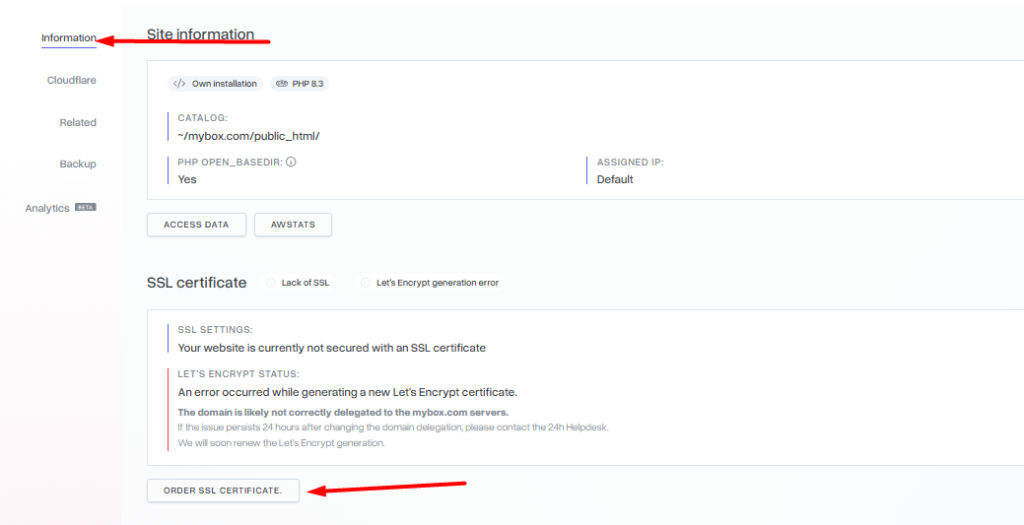
3. On the page that appears, select “disabled” from the list and click the Order SSL Certificate button to save your changes. This is a required step to deactivate the invalid keys of the originally working certificate in this way.

4. Repeat the initial steps, this time selecting “Let’s Encrypt” from the list. Confirm your choice by clicking on the “Order SSL Certificate” button.

Wait for Certificate Generation
Certificate generation is not immediate.
Depending on the load of the Let’s Encrypt infrastructure and DNS propagation status, the process may take:
- Several minutes
- Up to several dozen minutes in some cases
During this time, the system will verify:
- Domain ownership
- DNS configuration
- Website accessibility
Verify the Certificate
Once the process is complete:
- Open your website using:
https://yourdomain.com- Verify that:
- The padlock icon appears in the browser.
- No certificate warnings are displayed.
- The SSL certificate is reported as valid.
Common Causes of Certificate Generation Failures
Certificate generation may fail if:
- The domain is not pointed correctly to the hosting account.
- DNS changes have not fully propagated.
- A firewall is blocking validation requests.
- The domain is inaccessible from the internet.
- Incorrect DNS records exist.
Need Help?
If the mybox Panel reports an SSL generation error or the certificate is not issued successfully, contact the support team through the:
24/7 HelpdeskInclude:
- The domain name.
- The error message displayed.
- Any recent DNS or hosting changes.
This information will help speed up troubleshooting.
Summary
To regenerate a Let’s Encrypt SSL certificate:
- Open Websites in the mybox Panel.
- Open the website settings.
- Disable the current SSL certificate.
- Save the changes.
- Re-enable Let’s Encrypt.
- Wait for the new certificate to be issued.
In most cases, this process successfully restores SSL protection and removes browser security warnings.