


This article explains how to add a new website to your mybox account. You can host a website on your own domain or on a subdomain. Before you start, make sure your domain is already parked in the Domains tab - this is required to create a website under that domain.
If you’re setting up WordPress, you can skip the manual setup and use the AI Website Builder instead - it creates a ready website in minutes.
Table of Contents
How to add a new website

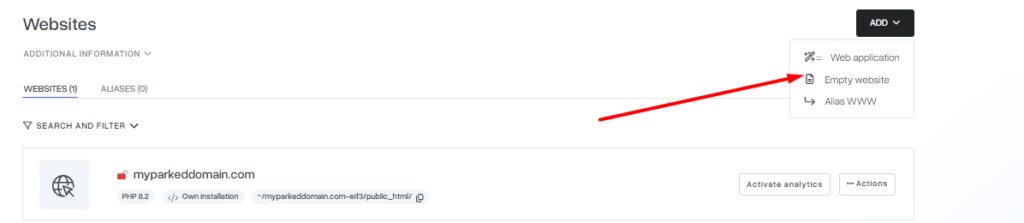
Step 1 - Open the Websites tab Log in to your mybox panel and go to the Websites tab. Click +Add and select Blank Website from the list.
Step 2 - Enter the website name Enter a name for your website. This name will be used to create the directory structure on the server, including the public_html folder where your website files will be stored. If you want a different directory name, enter it in the Web Account Directory field.
Step 3 - Set PHP version Select the PHP version your website requires. If you’re not sure, leave the default setting - it works for most websites including WordPress.
Step 4 - Configure optional settings
MySQL database - creates a database linked to this website. Required for WordPress and most CMS platforms.
Wildcard - if enabled, traffic from non-existent subdomains is redirected to this website. Leave it off unless you specifically need it.
FTP account - creates a dedicated FTP login for this website. Useful if you want to manage files directly via an FTP client.
Step 4 - Click Add After completing the form, click Add. The installation status will be displayed. If you created an FTP account or database, your access credentials will be shown - you can also download them as a PDF.

Step 5 - Click Add After completing the form, click Add. The installation status will be displayed. If you created an FTP account or database, your access credentials will be shown - you can also download them as a PDF.
The FTP account password will be visible for 3 days, then hidden. If you close the installation window before saving your credentials, you can retrieve them at any time by clicking Actions → Access data next to the website.

What happens next
Once added, the website will appear in your website list. You can now upload files via FTP, install WordPress using the Autoinstaller, or configure your domain settings.
Domain parking is available in R1 - you can connect your own domain or use a free mybox subdomain (e.g. yourname.mybox.me).