


Once you have logged in to mail.mybox.com, click on the “gear” icon located on the right. Once the settings page loads, select “Preferences” from the left, and then “Calendar”.
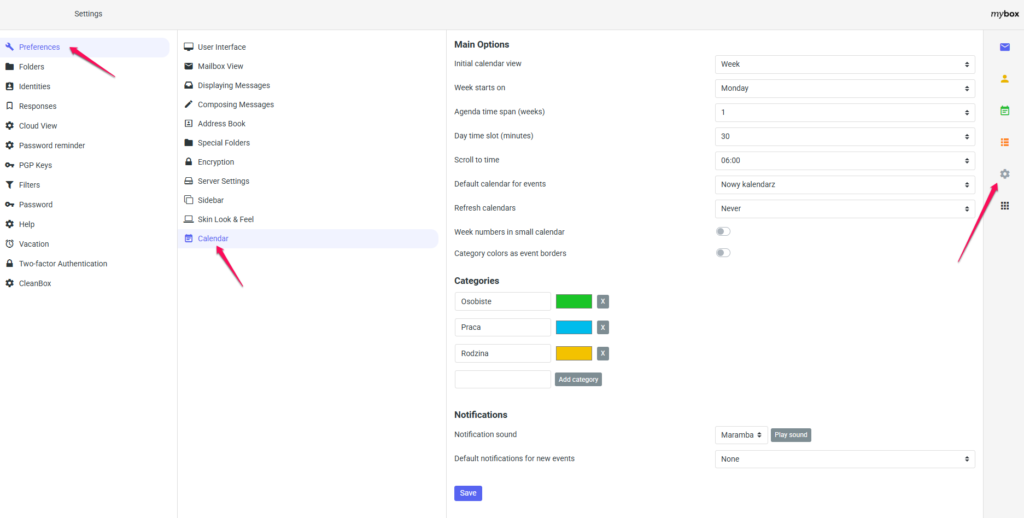
What can you set up?
- Initial Calendar View – i.e. the time frame that you want to occur by default when the calendar view loads. This can be a month, a week, a day, or a view that includes the meeting agenda.
- Beginning of the week in – determines whether you start your work week and thus the tasks in the calendar on Monday, or selected another day of the week.
- Single Field Duration (min) – will specify the minimum value for the duration of the meeting/event within one calendar cell. By default, this value is 30 minutes, but if your meetings are generally longer, you can change this value.
- Scroll to the moment – specifies the time that should appear at the top of the calendar view and thus be treated as the beginning of your day.
- Default calendar for events – assuming that more calendars have been created, e.g. divided into private, home, company, will allow you to define which one will be treated as the default when adding a new meeting/event.
- Numbering weeks in a small calendar – specify whether to number weeks in the small calendar view.
- Category Colors as Event Boundaries – Makes the category colors specified below to be used as event borders.
- Categories – categories divided into names of your choice and also include a color tag
- Notifications – set what sound should appear when an event alert is set.