


Reinstalling WordPress replaces the core WordPress files with a fresh copy of the same version. It does not affect your content, database, plugins, or theme - only the core files are overwritten.
This is useful when you suspect that a recent update did not complete correctly, or when you want to replace potentially compromised core files after a malware infection.

How to reinstall WordPress
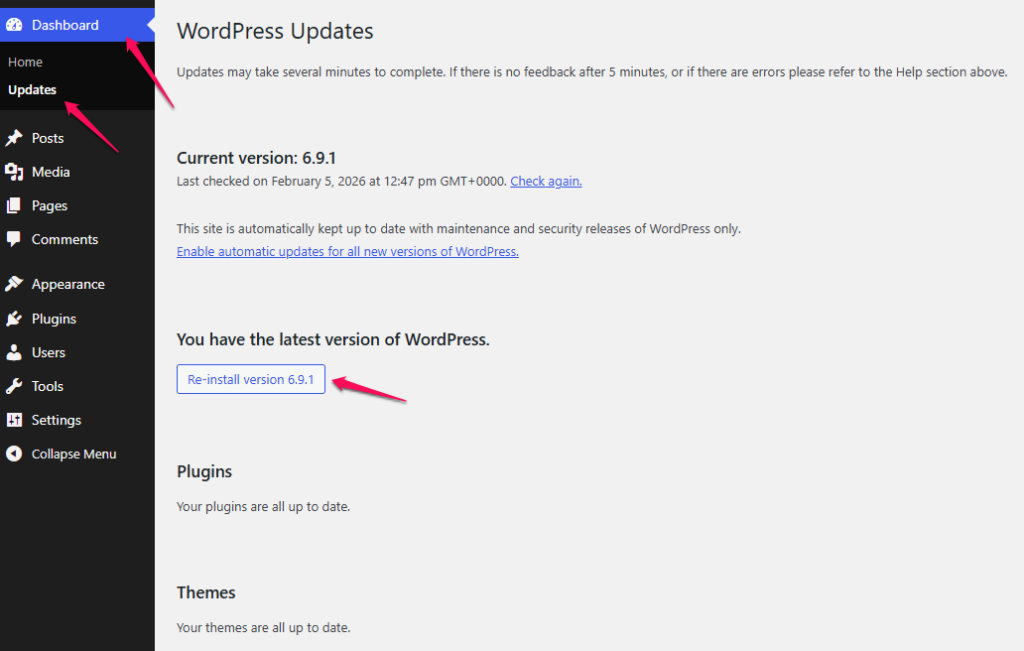
Log in to your WordPress admin panel and go to Dashboard → Updates. You will see information about the currently installed version and a Reinstall [version] now button. Click it to start the process.
WordPress will download and replace all core files. The process takes a few seconds. Your site remains accessible throughout.
What reinstalling does and does not change
| Affected by reinstall | |
| WordPress core files | ✅ Replaced with fresh copy |
| Your posts and pages | ❌ Not affected |
| Plugins and themes | ❌ Not affected |
| Database | ❌ Not affected |
| wp-config.php | ❌ Not affected |
If you suspect a deeper malware infection affecting plugins, themes, or uploaded files, a reinstall alone may not be sufficient. Contact support or use the malware protection tools available in your mybox panel.