


If you want to import or export contacts in Mybox webmail, log in to your account and open the Contacts section.
Table of Contents
Accessing Contact Import and Export
After opening the Contacts section, look for the cloud icons located in the toolbar at the top of the page.

These options allow you to:
- Import contacts into your address book
- Export existing contacts from your address book
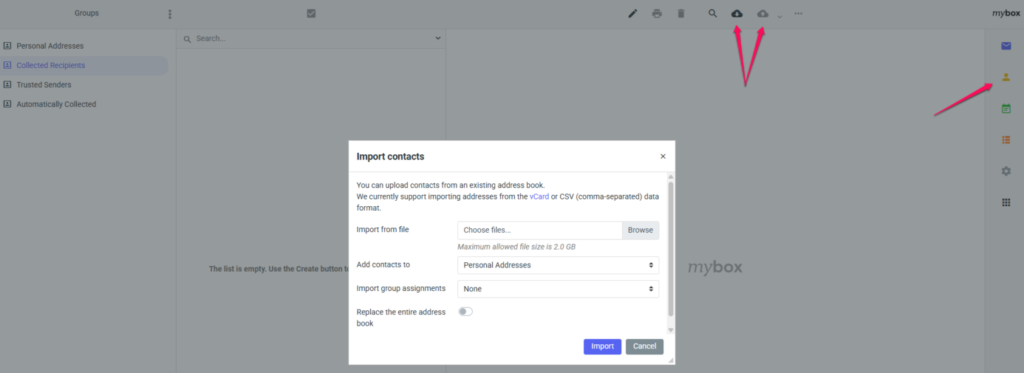
Supported Import Formats
Currently, Mybox webmail supports importing contacts in the following formats:
- vCard (.vcf)
- CSV (Comma-Separated Values)
Importing Contacts
- Open the Contacts section.
- Click the Import icon.
- Select the contact file from your computer.
- Confirm the import process.
The contacts will be added to your address book automatically.
Exporting Contacts
- Open the Contacts section.
- Click the Export icon.
- Choose the desired export format if prompted.
- Download the generated contact file.
You can then use this file as a backup or import it into another email application or service.
Example CSV File Format
When importing contacts from a CSV file, the file should follow the format shown below:
First Name,Last Name,E-mail Address
John,Doe,[email protected]
Jane,Smith,[email protected]
Make sure:
- The first row contains column headers.
- Email addresses are valid.
- Fields are separated by commas.
- The file is saved in CSV format.
Common Uses
Importing and exporting contacts can be useful when:
- Migrating to a new email provider
- Creating a backup of your address book
- Synchronizing contacts between applications
- Importing contacts from Outlook, Thunderbird, or another mail service
Summary
Mybox webmail allows you to easily import and export contacts directly from the Contacts section. Supported import formats include vCard (.vcf) and CSV, making it simple to transfer address books between different email platforms and applications.