


Using the instructions below, you can import a much larger database than using standard means such as phpMyAdmin.
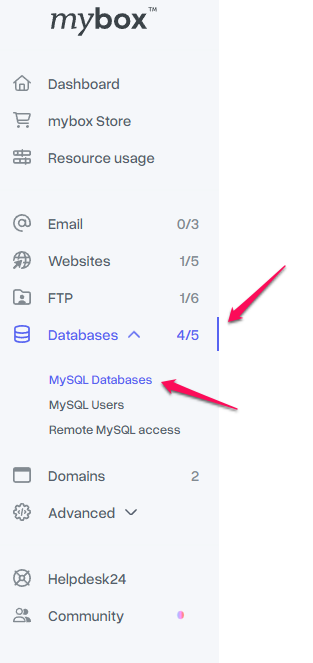
1. To restore a copy of a selected database from a .sql file in the mybox panel (available at panel.mybox.com), select the “Databases” tab and then the “MySQL Databases” subtab.

2. Place the file on the server you want to import. It should be placed in the root directory via FTP, in the /backup/ subfolder. The database export file should be saved with the .sql (text) or .gz (compressed) extension.
3. All your databases will be listed. Click “Actions” in the upper right corner and select “Import from file” from the drop-down list.

4. A window will appear where you can define which database should be uploaded from the file.
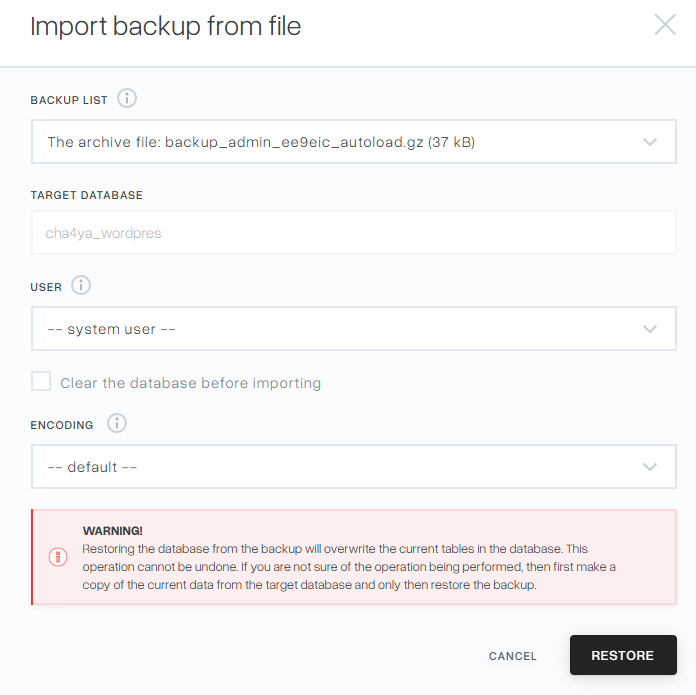
Please remember that the file you want to import should be placed in the root directory via FTP, in the /backup/ subfolder.
The database export file should be saved with the .sql (text) or .gz (compressed) extension. Only files with these extensions will be displayed in the “Copy List” field.
After reading and accepting all messages, click “Restore“.
5. We will receive confirmation of the database file upload order (in the upper right corner) and a message will be displayed informing us that the operation is being performed.
6. After completing the assigned task, the message will disappear.