


CRON is a scheduler that runs commands or scripts automatically at defined times or intervals. Common uses include sending scheduled emails, generating reports, cleaning up temporary files, or triggering WordPress maintenance tasks (such as scheduled posts and plugin updates).
On One Box, CRON is available as an add-on. On Flex Box and Prime Box, it is included by default.
Table of Contents
Adding a CRON task
- Log in to the mybox panel at panel.mybox.com.
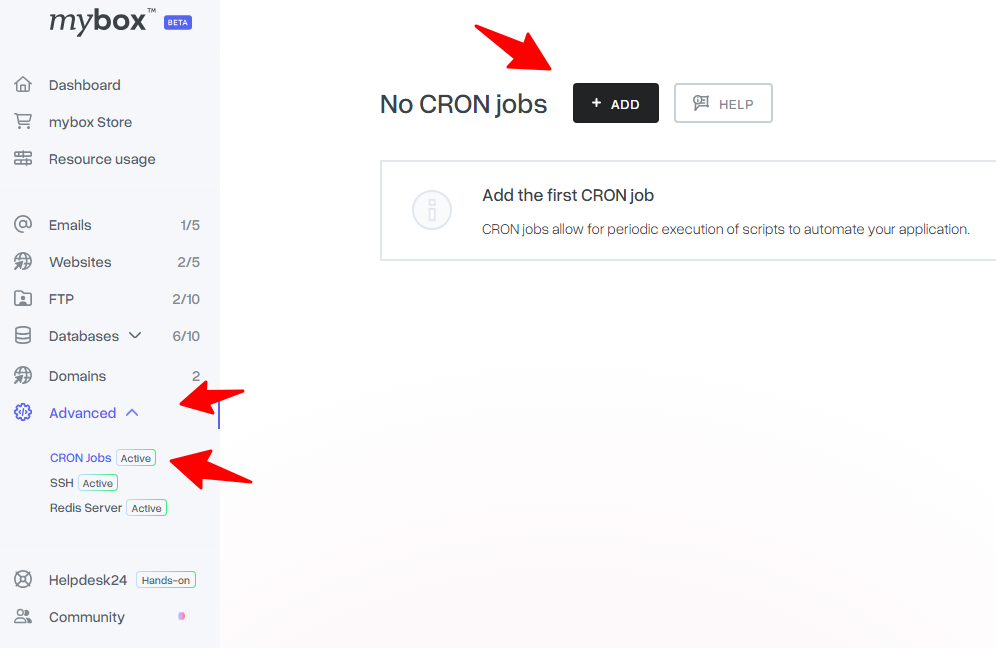
- In the left-hand menu, go to Additional Services → CRON Tasks.
- Click Add task.
- Fill in the schedule fields and the command to run.
- Click Save.
CRON schedule format

CRON tasks use a five-field time expression:
* * * * *
│ │ │ │ │
│ │ │ │ └─ Day of week (0–7, where 0 and 7 = Sunday)
│ │ │ └─── Month (1–12)
│ │ └───── Day of month (1–31)
│ └─────── Hour (0–23)
└───────── Minute (0–59)
An asterisk (*) means “every” for that field.
Common examples:
| Expression | Meaning |
| 0 * * * * | Every hour, on the hour |
| 0 3 * * * | Every day at 3:00 AM |
| */15 * * * * | Every 15 minutes |
| 0 0 * * 1 | Every Monday at midnight |
| 0 6 1 * * | First day of every month at 6:00 AM |
Editing and deleting tasks
To edit an existing task, go to Additional Services → CRON Tasks, find the task in the list, and click Edit. To remove it, click Delete.
What to expect
CRON tasks run on the server - not in the browser. There is no live output visible in the panel. If a task produces output (errors or results), configure it to write to a log file in your command, for example:
/usr/local/bin/php /home/user/public_html/cron.php >> /home/user/cron.log 2>&1
If a task does not appear to be running, verify the schedule expression and check that the command path is correct.