


Creating regular backups is one of the most important steps in protecting your WordPress website. Backups allow you to restore your site if it is affected by a failed update, configuration error, malware infection, or accidental data loss.
One of the most popular backup plugins for WordPress is UpdraftPlus, which allows you to create manual backups and schedule automatic backups directly from the WordPress administration panel.
Table of Contents
Installing UpdraftPlus

Log in to your WordPress administration panel and navigate to:
Plugins → Add New
In the search field, enter:
UpdraftPlus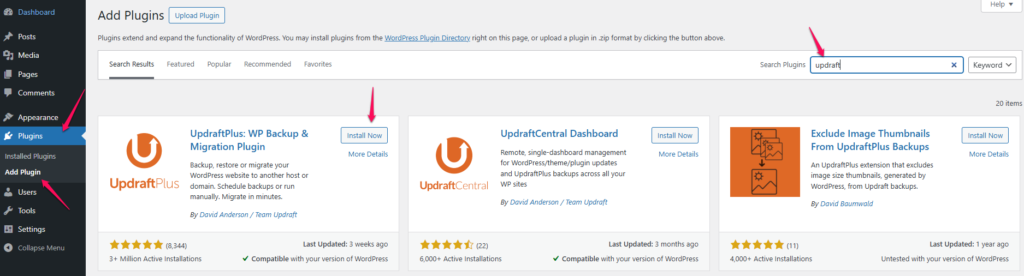
Locate the plugin in the search results and click:
Install Now
Once the installation is complete, click:
Activate
Opening the Backup Settings
After activation, navigate to:
Settings → UpdraftPlus Backups
You will be taken to the plugin dashboard, where you can manage backups and restoration points.
Creating Your First Backup
To create a manual backup:
- Open the Backup / Restore tab.
- Click: Backup Now
- A confirmation window will appear.
- Leave the default options selected.
- Click: Backup Now
The plugin will begin creating a backup of:
- WordPress files
- Themes
- Plugins
- Uploads
- Database
The duration of the process depends on the size of your website and database.
Configuring Automatic Backups
To schedule backups automatically:
- Open the Settings tab.
- Configure the backup schedule for:
- Files
- Database
Available intervals typically include:
- Every 2 hours
- Every 4 hours
- Daily
- Weekly
- Fortnightly
- Monthly
Choose the schedule that best matches how frequently your website content changes.
Setting the Number of Backup Copies
UpdraftPlus also allows you to specify how many backup copies should be retained.
For example:
- Keep the last 3 backups
- Keep the last 5 backups
- Keep the last 10 backups
Older backups will be deleted automatically when the retention limit is reached.
This helps prevent unnecessary disk space usage.
Backup Storage Location
By default, UpdraftPlus stores backups within your hosting account.
This means that:
- Backups consume disk space.
- Large websites may generate significant storage usage.
- Keeping too many backup copies can increase storage requirements.
For better protection, consider configuring a remote storage destination such as:
- Google Drive
- Dropbox
- Microsoft OneDrive
- Amazon S3
- FTP/SFTP server
Storing backups remotely protects them even if the hosting account becomes unavailable.
Restoring a Backup
If you need to restore your website:
- Open: Settings → UpdraftPlus Backups
- Locate the desired backup point.
- Click: Restore
- Select the components to restore.
- Follow the on-screen instructions.
Best Practices
For maximum protection:
- Schedule automatic backups.
- Store backups remotely whenever possible.
- Test restoration procedures periodically.
- Keep multiple restore points available.
- Create a manual backup before updating WordPress, themes, or plugins.
Summary
UpdraftPlus makes it easy to create and manage WordPress backups directly from the administration panel. After installing the plugin, you can create manual backups, schedule automatic backups, define retention policies, and restore your website when needed. While backups are stored locally by default, configuring remote storage is recommended for improved reliability and disaster recovery.