


WooCommerce is the most popular e-commerce plugin for WordPress, allowing you to transform a standard website into a fully functional online store. Installation takes only a few minutes and can be completed directly from the WordPress administration panel.
To install a WooCommerce store element within your WordPress-based website, after logging in to the backend of your website, go to the Plugins section and select Add new.

In the search engine on the right, type that you are looking for WooCommerce. After a while, the search results should appear.
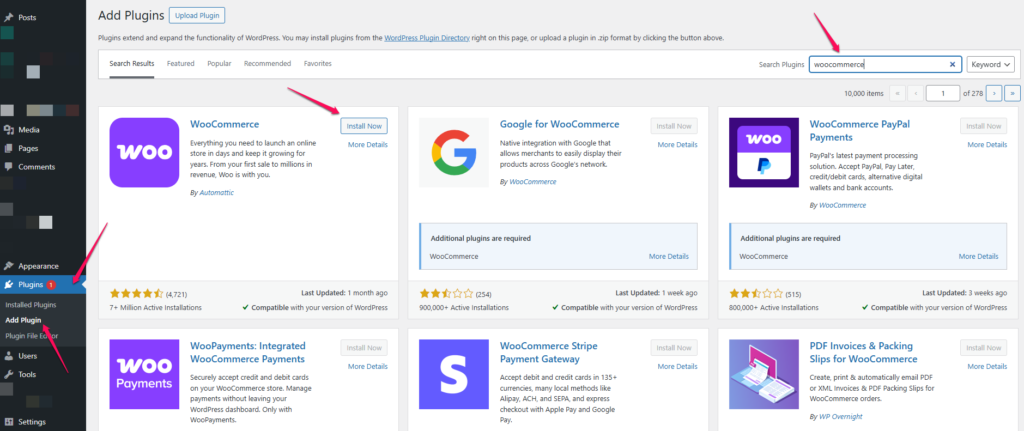
Click the install button.
Once the plugin is installed, the button will change its form. Click Enable.
Table of Contents
Verifying the Installation
After activation, a new menu item will appear in the WordPress administration panel:
WooCommerceYou will also see additional sections such as:
Products
Orders
Customers
Analytics
Marketing
WooCommerce will automatically create several essential store pages, including:
- Shop
- Cart
- Checkout
- My Account
These pages are required for the proper operation of your online store.
Next Steps
Once WooCommerce has been installed, you can begin:
- Adding products
- Configuring payment gateways
- Setting up shipping methods
- Creating product categories
- Managing customer orders
Summary
To install WooCommerce:
- Log in to your WordPress administration panel.
- Navigate to:
Plugins → Add New- Search for:
WooCommerce- Click:
Install Now- After installation, click:
ActivateWooCommerce will then be ready for c