


After logging in to the mybox WebMail, click the orange button on the right to go to the task list.
Here at the top of the page you’ll find two bubbles with up and down arrows . The down arrow indicates that the message is being imported.
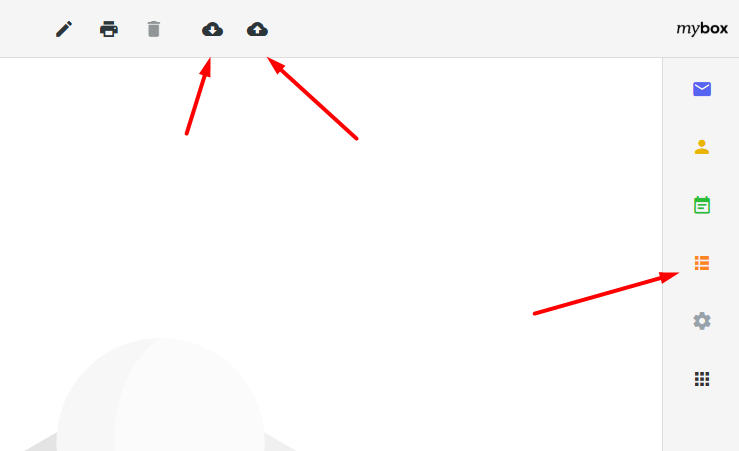

After clicking the import button, a window will appear where you can request an import from an .ics (icalendar) file . Select the file from your disk, then specify the task list you want to import to, and then click “Import.”

Similarly, you can export your task list. Just click the cloud button with an up arrow.
Then select the task list from which you want to export and click the “Export” button