


If you frequently send similar responses, reply templates can help you save time by allowing you to insert predefined messages into your emails.
Table of Contents
Creating a Reply Template
- Log in to your webmail account.
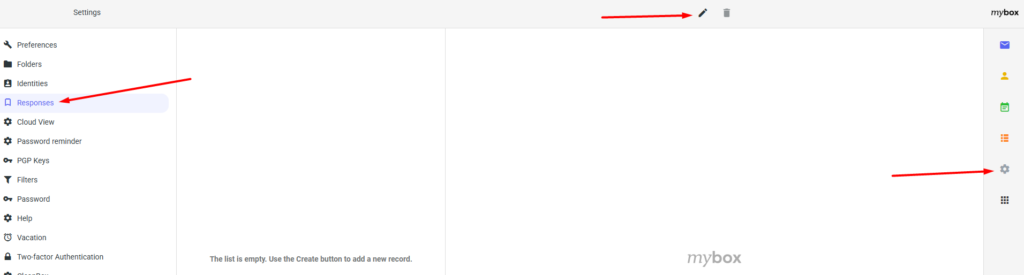
- Click the Settings (gear) icon.
- Select Reply Templates from the menu on the left.
- Click the Add Template (pencil) icon.
- Enter a name for the template.
- Type the message content you would like to reuse.
- Click Save to store the template.
Using a Reply Template
When composing or replying to an email:
- Open the message editor.
- Click the Templates icon in the toolbar.
- Select the desired template from the list.
- The predefined content will be inserted into your message automatically.

You can create multiple templates for different purposes, such as customer support responses, business correspondence, appointment conf
