


Mybox webmail allows you to change how messages are displayed and sorted within your mailbox. This can help you quickly find important emails and organize your inbox according to your preferences.
Table of Contents
Changing the Message Sort Order
Step 1
Log in to your webmail account:
https://mail.mybox.com
Step 2

Open the folder whose messages you want to sort, such as:
- Inbox
- Sent
- Drafts
- Spam
- Custom folders
Step 3
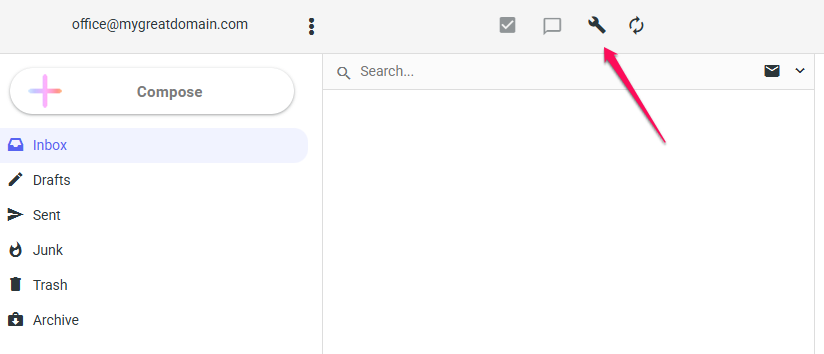
Above the message list, click the settings (wrench/key) icon.
Step 4
A configuration window will appear, allowing you to customize the message list display and sorting options.
Available Sorting Options
Depending on your webmail version, you may be able to sort messages by:
- Date
- Sender
- Recipient
- Subject
- Size
- Status (read/unread)
You can also choose whether messages should be displayed in:
- Ascending order
- Descending order

Saving Changes
After selecting your preferred sorting method, save or confirm the changes.
The message list will be refreshed automatically and displayed according to the selected criteria.
Why Change Message Sorting?
Sorting messages can help you:
- Find recent emails more quickly
- Group messages from the same sender
- Locate emails by subject
- Review unread messages first
- Organize large mailboxes more efficiently
Summary
To change the message sorting order in Mybox webmail:
- Log in to your account.
- Open the desired mailbox folder.
- Click the settings icon above the message list.
- Select your preferred sorting method.
- Save the changes.
Your messages will immediately be displayed using the selected sorting order.