


Security is a priority today, and two-step verification, which requires not only knowing and providing a password, but also a one-time code, most often generated using an app on the owner’s mobile device, has become the norm. Now, at the level of mail.mybox.com you can activate and this protection for your mailbox.
Table of Contents
Mobile application
To configure verification in two steps, where the element will be a mobile device and, more precisely, an application that generates codes for a single use, must be installed. Below you will find links to a catalog of applications of this type.
Enable two-step verification in the app on your mobile device

Log in to your inbox at mail.mybox.com, then go to settings by clicking on the “gear” icon on the right. Then, from the left column, select “Two-step verification (2FA)”. Activation options will appear. In our example, we will use verification on mobile devices.
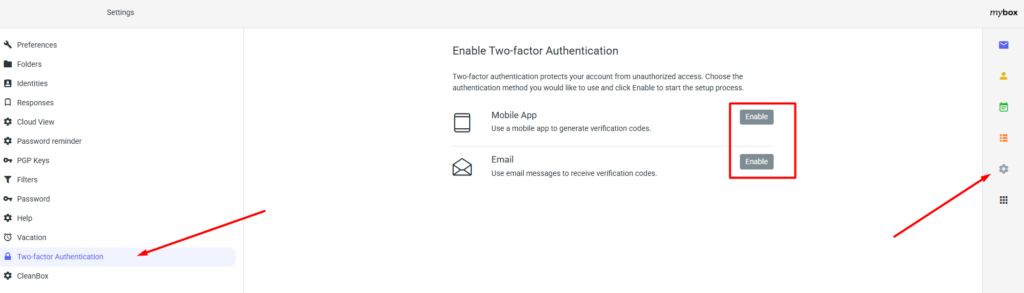
After selecting the option and clicking the “Activate” button, the system will ask you to enter the password you set for your email account. Enter it and press the “Continue ” button.

The next step assumes that you already have the app installed on your mobile device. Turn it on and scan the QR code.
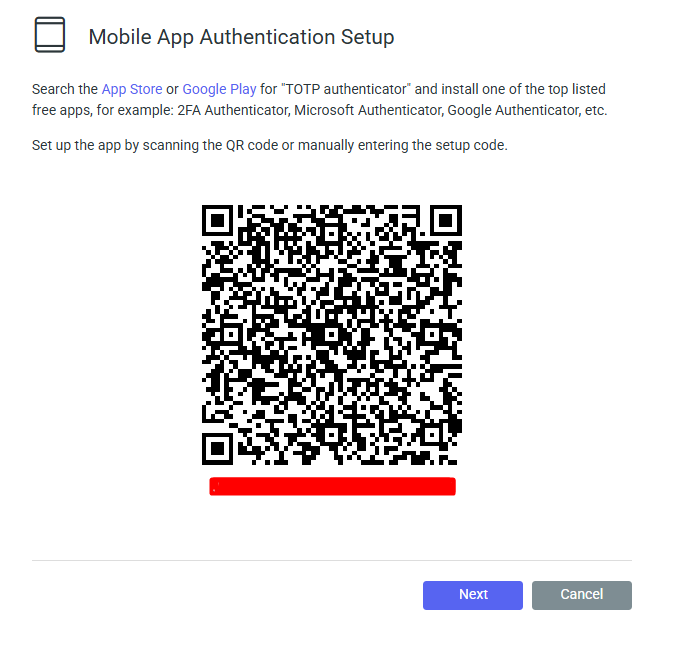
After the application reads the QR code, it should be added, and codes of a single use valid until several dozen seconds will be generated on the phone from now onward. Enter the code to confirm activation. Press the “Finish ” button.

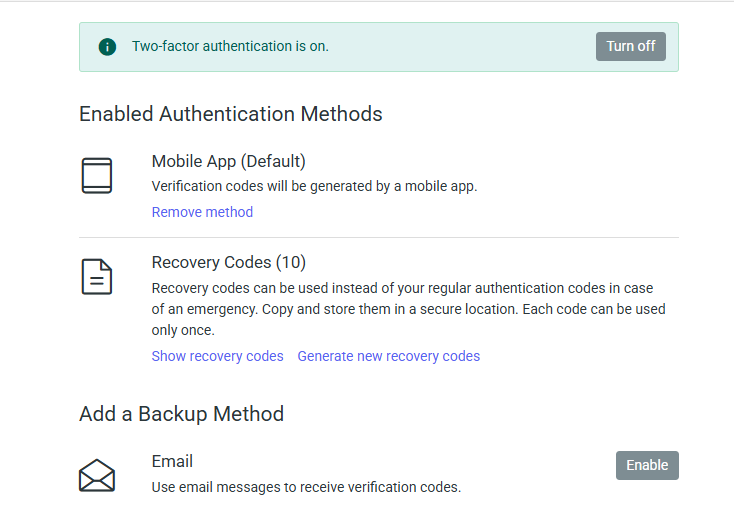
If you entered the code correctly, you will see a message at the top of the page confirming that two-step verification has begun.
Enable two-step verification via email
Log in to your inbox at mail.mybox.com, then go to settings by clicking on the “gear” icon on the right. Then, from the left column, select “Two-step verification (2FA)”. Activation options will appear. In this example, we will use email verification.

After selecting the option and clicking the “Enable” button, the system will ask you to enter the password you set for your email account. Enter it and press the “Continue ” button.

The next step is to enter the email address where the authentication verification codes will be sent. After entering the address of the mailbox, press the button “Next “.
Note! Do not enter the address of the mailbox for which you are setting up two-step verification.

You will receive a message containing a code in the box provided.
Note! The code is valid for 5 minutes.

Enter it in the box on the mail.mybox.com page and confirm it by clicking the “Finish” button.
The system will tell you that adding two-step verification was successful.

Recovery codes
Since your mobile device may be insecure or have problems, we suggest you download a list of recovery codes.

Click on the link “Show recovery codes” and a list of codes will appear. Save or print them and keep them in a safe place.

If your current backup codes are lost or used up, you can click on the “Generate new recovery codes” link to obtain new codes.
