


To receive notifications about new messages arriving in your mailbox, log in to mail.mybox.com, go to settings by clicking the “gear” icon , and then in the column on the left, select the “Preferences” section and “Mailbox view” .
On the page that loads you will find the “New message” module .
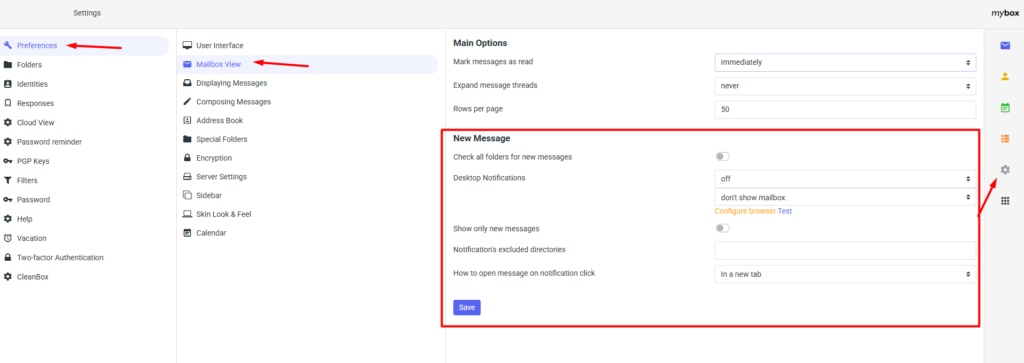

To activate the general notification option, activate the two sliders next to “Check for new messages in all folders” and “Show only new messages” .

Click the “Test” link to check if your notifications are set up correctly. By default, you’ll receive a red message telling you to adjust your browser settings.
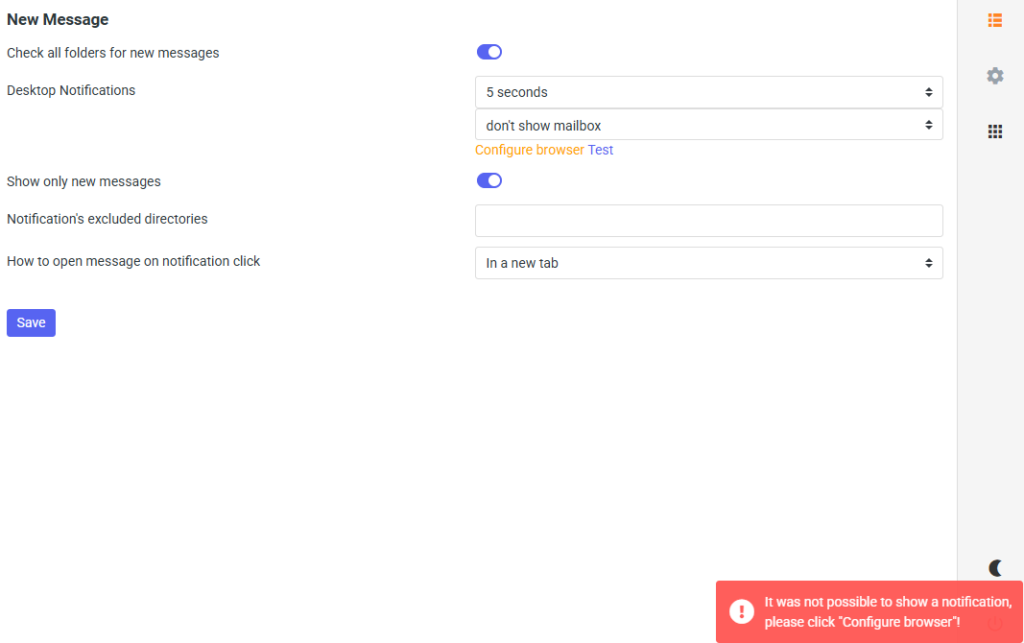
To configure your browser settings, click the “Browser settings” link . This will cause a notification to appear in the upper left corner asking if you allow the website to display messages. Click the “Allow” button . If the notification does not appear, click on the icon on the left side of your URL bar and go to “Site Settings“. In the “Permissions” section, make sure notifications are set to “Allow“.


The browser configuration message should turn green. Now click the “Test” link again . The system should now indicate that notifications are set up correctly.

Thanks to this seemingly simple function, you are guaranteed not to miss any important emails, as information about them will “pop up” on your desktop.