


When you plan to receive messages from your domain’s mailbox and reply to them by identifying yourself with your domain using the gmail.com app, you just need to follow a few steps.
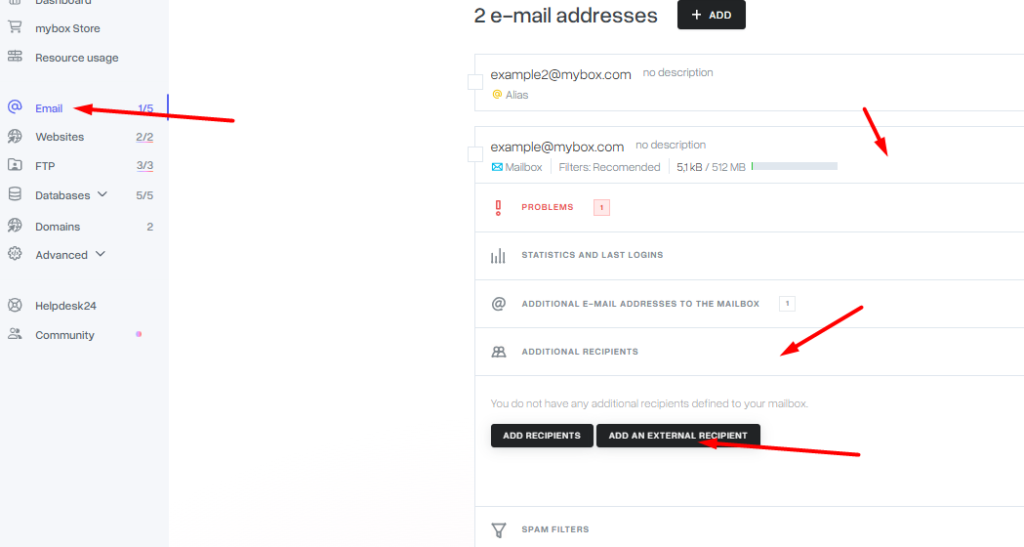
1. From the mybox panel level, go to the “E-mail” section, and after selecting the mailbox, expand its details and click on the option to add an external recipient.
There, enter the address of your mailbox on the gmail.com where emails from the indicated mailbox will be forwarded.

2. Then log in to the gmail.com box and go to the “Accounts” section in the settings and under “Send as” select to add a different email address.

3. In the box that appears, enter a friendly name for you, e.g. Contact and the email address in your domain, then click the “Next” button.

4. On the next page, fill in the details as if you were setting up an email client application. This step is used so that you can send emails from gmail.com identifying yourself with your own mailbox. Make sure that the SMTP server field has the address: smtp.mybox.com, the port is set to 587 , and the TLS option is checked.
The full name of your mybox.com box and the password that was set for it when creating it are used as a login.

After clicking on the “Add account” button, you will receive a message from the gmail.com address in the mybox.com inbox verifying that it belongs to you. Once approved, you will be able to send messages.