


In order to import your Gmail inbox correctly, make sure that you have taken the steps described below beforehand:
- Activation of access via IMAP.
- Disabling the threading option.
- Activation of two-step verification.
- Generate a password for the app.
- Import order in the mybox panel.
Not sure how to check and follow the steps described above? We are here to help!
Table of Contents
How to enable IMAP in Gmail:
- Sign in to your Gmail account.
- Click on the settings icon in the upper right corner of the screen (gear).
- Select “See all settings”.
- Go to the “Forwarding and POP/IMAP” tab.
- Select “Enable IMAP”.
- Click “Save Changes”.
To turn off conversations in Gmail:
- Sign in to your Gmail account.
- Click on the settings icon in the upper right corner of the screen (gear).
- Select “See all settings”.
- Go to the “General” tab.
- Select “Thread View”.
- Select the “Thread View Off” option.
- Click “Save Changes”.
To enable two-step authentication in Gmail:
- Sign in to your Gmail account.
- Click on your Google account in the upper right corner of the screen and select “Account” or “Account management” or by going directly to the page: https://myaccount.google.com/apppasswords
- Go to the “Security” tab.
- Scroll down and find the “Two-Step Verification” option. Click on the “Enable” button.
- Follow the on-screen instructions and enter the phone number that will be used for verification.
- You will receive a verification code on your phone. Enter this code on the screen to confirm that you want to enable two-step verification.
- Click on the “Done” button to complete the process of enabling two-step verification.
How to generate a password for an app in Gmail:
- Sign in to your Gmail account.
- Click on your Google account in the top right corner of the screen and select “Account” or “Account Management.”
- Go to the “Security” tab.
- Scroll down and find the “App Passwords” option. Click on it.
- Select the app for which you want to generate a password, e.g. “Mail”.
- Select “Other” as the device type and give the app a name.
- Click on the “Create” button.
- You will be given a unique password that you should copy and use in the application for which it was generated.
How to order the import of a mailbox in the mybox panel:
- Log in to the mybox panel.
- Go to the “Email” section in the menu on the left.
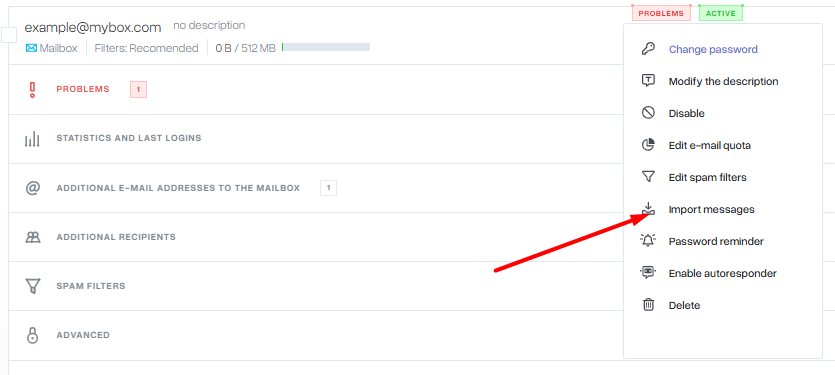
- Next to the selected mailbox, select “Import Messages” from the “Actions” menu.
- From the “select a server address” list, select the “Gmail” option.
- In the “source mailbox” field, enter your Gmail address, and in the passwords field, the password for the application generated by the procedure described above.
- Click the “Order Import” button to start the process.
