


By default, WordPress allows password reset through the login page using the “Forgot password” option. A reset link is sent to the email address associated with the user account.
If you do not have access to the mailbox, you can reset the password directly in the database using phpMyAdmin.
Table of Contents
Steps to change the password via database

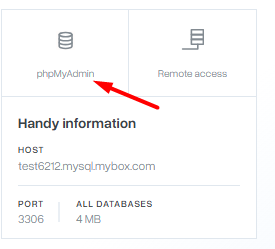
1. Log in to the mybox panel, select the “Databases” section from the menu on the left, and click the “phpMyAdmin” button on the page that appears.
2. After logging in to the database, select the wp_users table in the column on the left.
Keep in mind that sometimes the so-called prefix can be different, so look for a table called string-character_users
If you do not know the login and password to the database related to the “WordPress” script, read the guide located – HERE

3. After loading the table contents, you will receive a list of users who have created accounts within your website. Find the user you want to change the password for and click on the “edit” or “edit” button (in English)

4. Then search for the field named “user_pass”, select the “MD5” method from the drop-down list and enter the password you want to set for the edited user in the value field where the string is located, e.g. my-new-password-123. Once you have performed the action, your new password will be encrypted and will be presented as a barely legible string.
Remember or save in a safe place the new password you set in this step.

5. The last step is to confirm the change with the “execute” or “go” button (in English)
Now you can log in to your WordPress dashboard using your new password.
Summary
If email-based password recovery is not available, you can reset a WordPress password directly in the database via phpMyAdmin by editing the user_pass field in the wp_users table and saving a new MD5-hashed value.