


Integrating your Cloudflare account with your server administration interface provides a direct mechanism to sync zone controls, protect apex domains, and govern edge settings straight from your local platform.
To add the Cloudflare account integration correctly, you need to get the API key from your account to get started. A description of obtaining an API key can be found HERE.

Then, with the generated key at hand, log in to the mybox panel and click on your name in the upper right corner, select Settings from the menu.
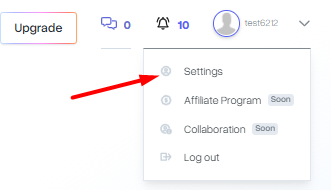
On the settings page, next to the Users section, click the +Add User button.

Next, enter the email address, API key obtained in your Cloudflare account, and make sure the Set as Default Profile option is enabled when adding the first profile.

Once you have confirmed the settings with the Add button, a new entry should appear on the page with your Cloudflare account with an integrated API key.

How do I make my profile the default for newly added domains?
Once you’ve added a profile, click the Actions button on the right, and then select Change settings from the list.

Next, you will be able to select a profile that will become the default for newly added domains at the mybox panel level.

Commit the changes by clicking Save.