


If you have lost the password for your PrestaShop store panel, you can recover it in two ways.
Table of Contents
Basic method
If you have access to the email address associated with your store user account, simply select the password reminder/reset option in the store back office login form.
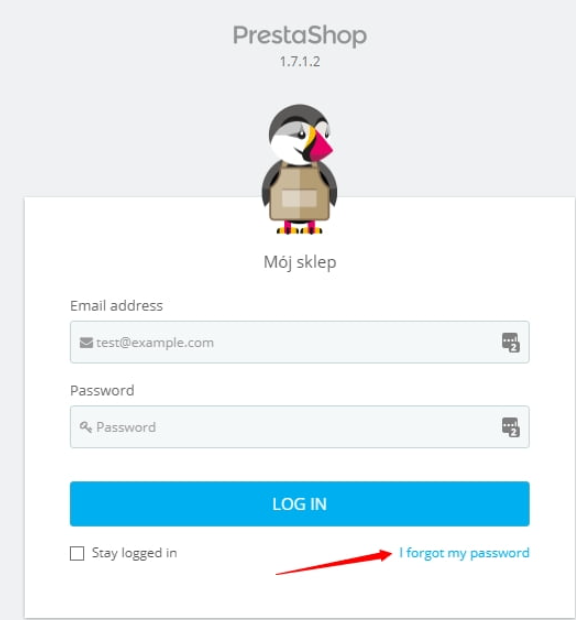

Then, in the form field that appears, enter your email address:

Method by modifying the database
If you are unable to recover your password using the basic method, for example because you do not have access to the email address associated with the store administrator account, you can make a change by modifying the database.
Step 1 – Obtaining a token
Prestashop 1.6.x
Log in to your account via FTP and open the file:
/config/settings.inc.php for viewing
Prestashop 1.7.x
Log in to your account via FTP and open the file:
/app/config/parameters.php for viewing
where to get the value of the cookie_key variable :

Note:
If you installed the script automatically from the mybox panel, these files also contain the login and password for the database your store uses. You’ll need this information in step two.

Step 2 – modifying the database
1. After logging in to the mybox panel, go to the Databases section.

2. Then, when you see the page with the list of databases you have, in the upper right corner you will find a link to the phpMyAdmin panel.

3. A login form will open in a separate browser. Use the database data you specified when creating it or downloaded from the configuration file in step one.
4. Expand the list of tables and look for the one named ps_employee
(note, if you have a different prefix, look for _employee in the table name).

5. Clicking the table name will display its contents, specifically users such as administrators and employees. Find the user whose password you want to modify in the list and click Edit.

Step 3 – Change your password
6. At this stage, a form for editing user data will be displayed. The field you’re interested in is: passwd

7. From the left, expand the list and select MD5 – this is a form of password encryption. Then, in the last field containing a string, delete it and paste the cookie_key value retrieved in step one. Without any additional spaces, enter the new password you want to set for this user. Then, click the Execute button on the right, below the form fields.
Your password has been changed and you can log in to your store’s back office using your new credentials.