


If you are moving your PrestaShop store to a new domain, you must update both the hosting configuration and the store settings so that PrestaShop can load correctly under the new address.
Table of Contents
Before You Begin
Before changing the domain:

Ensure an SSL certificate is active for the new domain if HTTPS will be used.
Add the new domain to your hosting account.
Make sure the domain points to the correct hosting service.
Steps you need to take
1. First, you need to create a new blank page under the target domain.
2. In the directory tab of the web account, you need to indicate the existing directory from which the website has been loaded so far.
You can check the page path in the mybox panel, in the page information tab.
3. Now log in to the backend of your “PrestaShop” store.
4. After logging in, go to the Configuration / Preferences / Motion section after logging in
On the page that appears, there will be a tab Set store URL , where you need to enter a new address/domain in both fields. Save your changes by clicking the button in the bottom right corner of the tab.
5. Sometimes , “PrestaShop” may still remember the old domain address after such a change. In the menu, go to the Configuration / Advanced / Performance section.
Then, in the upper right corner of the page, select clear cache.
If you don’t have access to your store’s backend, you can make the change through the database
1. Log in to your store’s database using “phpMyAdmin”. HERE you will find information on where to find this option in the mybox panel.

2. After selecting the database name and expanding the list of tables that the database contains, find the table named ps_configuration.
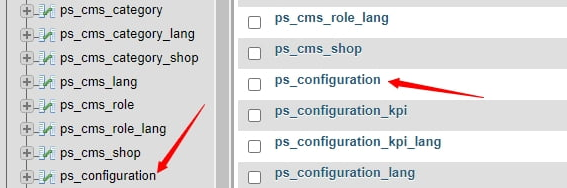
3. Inside the ps_configuration table, find two items, i.e. PS_SHOP_DOMAIN and PS_SHOP_DOMAIN_SSL and click on the edit button indicated by the arrow.

4. In the window that opens, modify the value field with a new domain name, then click the Go / Execute button.
PrestaShop 1.7 and Newer
In PrestaShop 1.7, the domain information is typically stored in:
ps_shop_urlOpen this table and update the relevant domain fields with the new address.
Save the changes and clear the PrestaShop cache if possible.
Common Issues After a Domain Change
If the store still redirects to the old domain:
- Clear the PrestaShop cache.
- Clear your browser cache.
- Verify the values stored in the database.
- Check for hardcoded URLs in modules or theme settings.
- Confirm that the new domain points to the correct website directory.
Summary
To change the domain of a PrestaShop store, add the new domain in the mybox Panel, point it to the existing website directory, and update the store URL settings in Configure → Shop Parameters → Traffic & SEO. If you cannot access the administration panel, you can update the domain directly in the database using the ps_configuration table or the ps_shop_url table for newer PrestaShop versions.