


If you need to restore website files from a backup, you can do so directly from the mybox panel.
Table of Contents
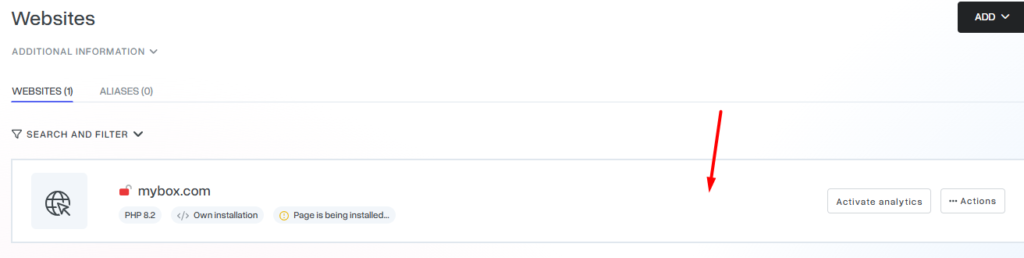
Step 1: Open the Website Settings
- Log in to the mybox panel.
- In the left-hand menu, click Websites.
- Select the website for which you want to restore files.
Step 2: Access Available Backups
- In the website management screen, click Backups in the left-hand menu.
- Locate the desired restore point.
- Click Restore next to the backup you want to recover.

Step 3: Confirm the Restore Request
- Review the selected restore point.
- Click Restore again to confirm the operation.

Important Notes
- Restored files are placed in the
~/backupdirectory. - Existing website files are not automatically overwritten during the restore process.
- Depending on the size of the website and the number of files being restored, the process may take anywhere from a few minutes to several hours.
After the restoration is complete, you can review the recovered files in the ~/backup directory and manually copy any required content back to your website.