


If you suspect that an email does not actually originate from the person shown in the sender field, you can perform a basic analysis using the message source. The email headers contain valuable information that can help determine where the message came from, how it was transmitted, and whether there are signs of sender impersonation.
Table of Contents
Viewing the Message Source
To view the source of an email in Mybox webmail:
- Log in to your webmail account.
- Open the message you want to analyze.
- Click the three-dot menu in the top toolbar.
- Select:
Show Source
The full message source will open, including the message headers and body. The headers are the most important part for basic analysis.
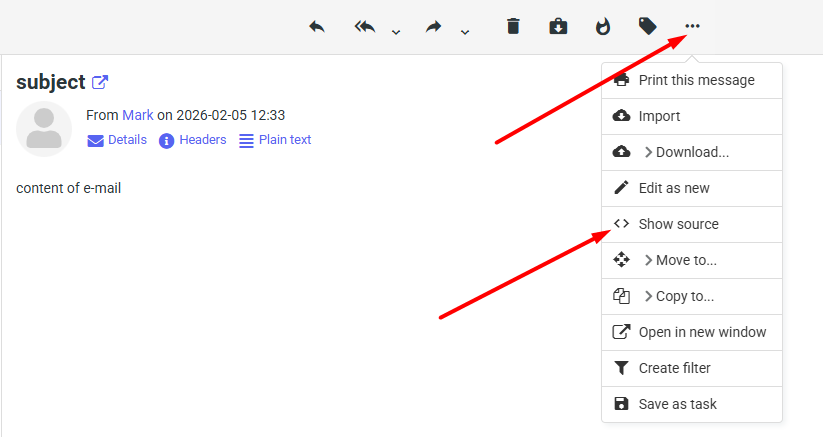
.
Important Header Fields
Return-Path
The Return-Path indicates where delivery notifications and bounce messages will be sent.
Example:
Return-Path: [email protected]This field often matches the real sender. In many spam campaigns, it may be missing or contain suspicious values.
Delivered-To
The Delivered-To field shows the actual mailbox that received the message.
Example:
Delivered-To: [email protected]This confirms who received the email.
Received
The Received headers show the path the message took between mail servers.
These entries include:
- Sending server names
- IP addresses
- Authentication information
- Timestamps
By reading the Received lines from bottom to top, you can trace the route the message followed before reaching the recipient. Authenticated messages may contain entries such as:
Authenticated sender: [email protected]which indicates that the sender successfully authenticated with the mail server.
Date
The Date field indicates when the message was sent.
Example:
Date: Wed, 20 Oct 2021 12:45:49 +0200From and To
These fields show the sender and recipient displayed to the user.
Example:
From: John Flexible <[email protected]>
To: Mark Flexible <[email protected]>
Keep in mind that the From field is only a display value and can be forged.
Message-ID
The Message-ID is a unique identifier assigned to the email.
Example:
Message-ID: [email protected]The domain portion of the Message-ID often indicates the system that generated the message and can help identify the true source of an email.
Cc
The Cc field shows additional recipients who received a copy of the message.
Example:
Cc: [email protected]How to Detect Sender Spoofing
A common phishing technique is sender spoofing, where the sender pretends to be someone else.
Check SPF Results
Look for the Received-SPF field.
Example:
Received-SPF: noneIf SPF validation fails, is missing, or reports suspicious information, the sender may not be authorized to send messages on behalf of the displayed domain.
Compare the Displayed Sender with the Real Sender
A message may display:
From: [email protected]while actually originating from:
X-Sender: [email protected]If these values do not match, the message may be fraudulent.
Check the Reply-To Address
The Reply-To field indicates where replies will be sent.
Example:
Reply-To: [email protected]If the Reply-To address differs from the sender address shown in the email client, it may indicate a phishing attempt.
Review the Originating IP Address
The X-Originating-IP field may reveal the IP address used by the sender.
Example:
X-Originating-IP: 138.199.59.217Using a WHOIS lookup on the IP address can provide information about the internet provider or network being used. If the location or provider does not match what you would expect from the sender, the message may be suspicious.
Examine the Message-ID Domain
If a message claims to come from Mybox but the Message-ID contains another domain, such as:
email13.godaddy.comthis may indicate that the message was actually generated by a different mail system.
What to Verify in a Suspicious Email
When analyzing a potentially fraudulent message, compare:
FromReturn-PathReply-ToX-SenderReceived-SPFX-Originating-IPMessage-ID
Any inconsistencies between these fields should be treated as warning signs.
Summary
Email headers contain valuable information that can help determine whether a message genuinely originated from the person displayed as the sender. By reviewing fields such as Return-Path, Received, SPF, Message-ID, Reply-To, and X-Sender, you can often identify sender impersonation and phishing attempts before interacting with the message. Always treat unexpected em