


SPF is one of the anti-spam filters used by mybox.com. In SPF, we can determine which servers are authorized to send messages from our domain.
A detailed description of how it works can be found in the documentation.
To configure your SPF record, log in to the mybox panel, then go to the domains section and select the option to manage your domain’s DNS zone.
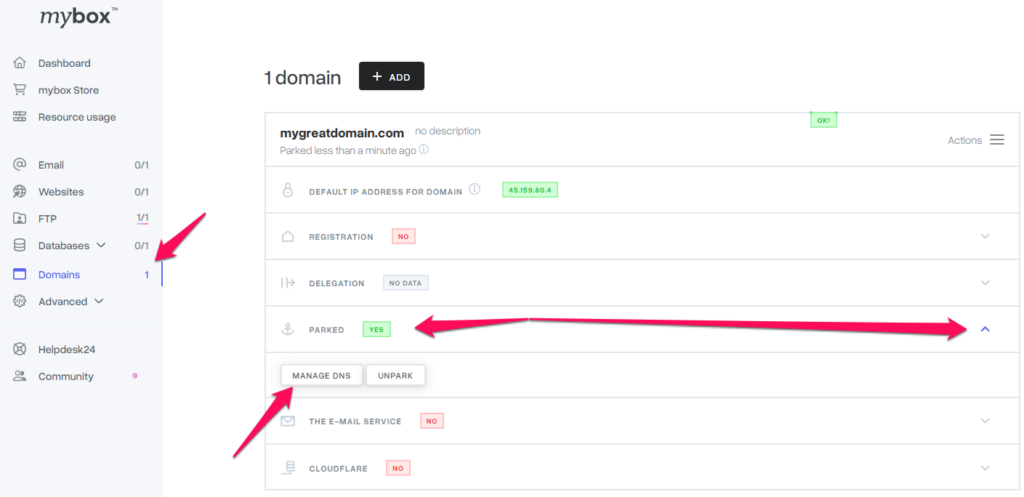

Then, in the upper right corner, click on the “Actions” button and select “SPF Creator” there.

A new window will appear. We complete it as follows:
- Incoming Mail Servers (MX) – Specifies whether the mail servers specified in the MX records are authorized to send messages.
- Server with Domain Root IP Address (A) – Specifies whether the IP address of the server specified in record A is authorized to send messages.
- Servers with a domain-terminated hostname (PTR) – Specifies whether all servers with a name that is a subdomain of the current domain can send mail (e.g., for a domain exampledomain.com address mail.exampledomain.com can send mail)
- Mail servers (MX) of the following domains – Enter the names of other domains whose mail servers are authorized to send mail. Separate each name with a space character.
- Servers with the following IP addresses (CIDR) – Enter the IP addresses of the servers that are authorized to send mail. Separate each name with a space character. You can save address classes in CIDR notation.
- The recipient action on incorrect SPF verification determines what the recipient should do in the event of incorrect verification.
- Selecting Absolutely Reject suggests that the recipient is declining the message due to incorrect SPF authorization.
- Conditionally accept suggests the recipient to accept the message, but mark it as potential SPAM.
- Selecting Accept suggests that the recipient accepts the message despite failing SPF authorization.
We suggest you choose the conditionally accept value.
