


If you have accidentally deleted messages or need to recover an earlier state of your mailbox, you can restore from a backup directly in the mybox panel. The restore process creates a separate mailbox containing the recovered messages - your current mailbox is not affected or overwritten.
Table of Contents
How to restore an email backup
Step 1 - Go to the Email section Log in to your mybox panel and open the Email section from the left menu.

Step 2 - Select the mailbox Click on the mailbox you want to restore to expand its options, then open the Backups tab.
Step 3 - Choose a backup point and restore A list of available backup points will appear. Click Restore to mailbox next to the backup point you want to recover from.
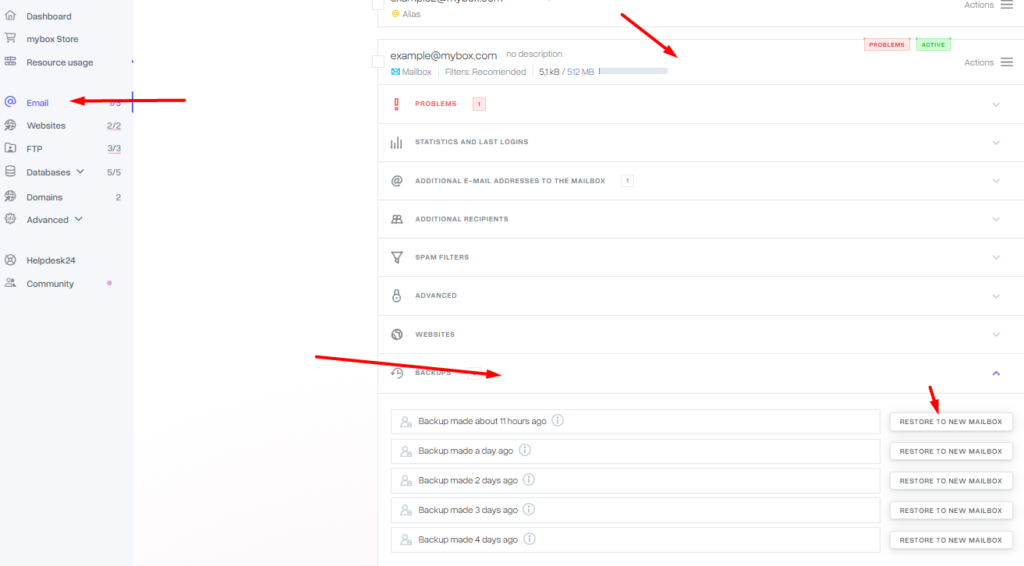
The system will create a new mailbox containing the messages from that backup. Your original mailbox remains unchanged. You can then move messages from the restored mailbox to your active one using your email client or Webmail.
How many backup points are available
The number of available backup points depends on your plan:
| Plan | Backup retention |
| One Box | 1 day (previous day) |
| Flex Box/ Prime Box | 7 days |