


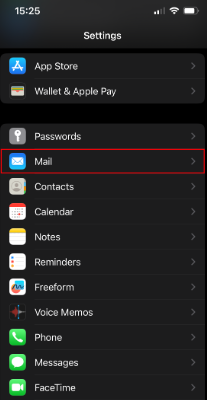
1. Select Settings from the main menu.
2. Select Mail from the Settings list.

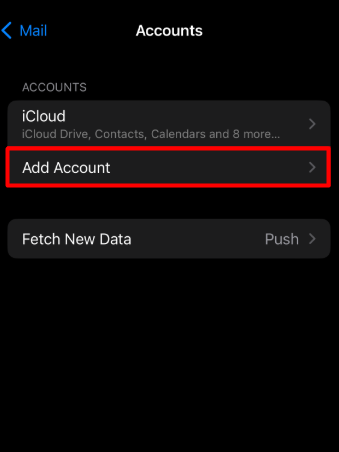
3. Select Accounts -> Add account .

4. We choose others

5. Select Add email account from the Others list.

6. Fill in the details for the new account. Then select Next in the upper right corner of the screen.

- Name – enter your first and last name
- Email – enter your email address
- Password – enter the password for the email address you entered earlier
- Description – a brief description of our email account
7. Select IMAP. Then select Next in the upper right corner of the screen.
- Name – enter your first and last name
- Email – enter your email address
- Description – a brief description of our email account
Scroll down and enter the settings for our incoming mail server.
- Hostname – enter imap.mybox.com
- User – enter your email address
- Password – enter the password for the email address you entered earlier

Remark! If the application does not want to establish communication, enter the host name along with the given port, i.e. imap.mybox.com:143
Scroll down and fill in the fields for the outgoing mail server (SMTP). Then select Next at the top right of the screen.
- Hostname – enteri smtp.mybox.com
- User – enter your email address
- Password – enter the password for the email address you entered earlier
8. Choose what should be included in the email account. To finish, select Keep in the corner at the top right of the screen.