


In a situation where you receive unsolicited messages, the so-called spam, you have the opportunity to take action yourself from the level of our systems.
Both in the mybox panel and on the webmail side, mail.mybox.com you have a number of options that can help in this regard. One of them is the black and white list of recipients.
Table of Contents
What is the black and white list?
This is a list of authorized (white) or blocked (black) senders.
How can you define a global list in your account?

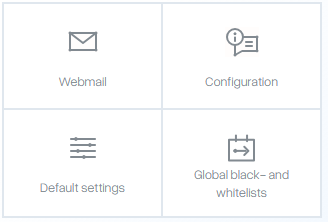
Once you’ve logged in to the mybox panel, go to the “Email” section, and at the bottom of the page with the list of mailboxes that will load, select the “Global lists (black/white)”.
On the next page, you will find a list of already defined rules and a “+ Add” button that will allow you to add more items.

The principle is simple. In the first field, you specify the sender, where it can be either a specific e-mail address, or using an asterisk * indicating the so-called wildcard, to indicate that you wish (by adding to the white list) or do not wish (adding to the black list) to receive messages from a given sender.
Allowed address formats:
[email protected]
addressi@*
*@exampledomain.com
*@example*
*@*.com
Can the list be managed by the user of a given mailbox himself?
Yes – you can do this by logging directly into WebMail at mail.mybox.com. Go to “Settings”, then select “Cleanbox” and “Address Rules”.
There, on a similar principle to the one described above, you add rules from which recipients you wish to receive messages, from which you do not, and in such a situation, they are to go to the Spam directory.