


Evolution supports the CalDAV protocol, allowing you to synchronize your Mybox calendar directly with the application. Once configured, your events, appointments, and reminders will be synchronized automatically between Evolution and your Mybox account.
Table of Contents
Prerequisites
Before configuring the calendar, make sure that:
- CalDAV access has been enabled for your Mybox calendar.
- You have the CalDAV connection details.
- You know your mailbox username and password.
Creating a New Calendar
Step 1

Open the Evolution application.
Step 2
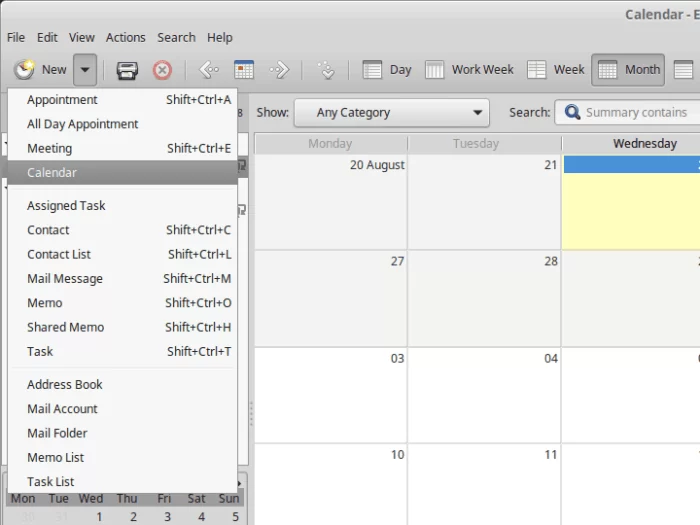
From the menu, select:
File → New → Calendar
or click:
New → Calendar
depending on your Evolution version.
Step 3
In the calendar creation window, configure the new calendar.
Enter:
- Calendar name
- CalDAV server address
- Username (full email address)
- Other connection details provided during CalDAV setup

Step 4
Confirm the configuration and continue.
Authentication
When Evolution attempts to connect to the server, you will be prompted to enter your password.
Enter the password associated with your Mybox mailbox and confirm the login.
If desired, you can allow Evolution to remember the password for future connections.

Finishing the Setup
Once the connection is successfully established:
- Verify that the calendar information is correct.
- Click:
Apply
to save the configuration.
The calendar will be added to Evolution and synchronization will begin automatically.

Synchronization
After configuration, Evolution will synchronize:
- Events
- Meetings
- Reminders
- Recurring appointments
- Calendar updates
Changes made in Evolution will be reflected in your Mybox calendar, and changes made in webmail will appear in Evolution during synchronization.
Troubleshooting
If the calendar does not synchronize:
- Verify that CalDAV access is enabled.
- Check that the CalDAV URL is correct.
- Confirm that your username is the full email address.
- Verify that the mailbox password is correct.
- Make sure your network connection is active.
Summary
To connect your Mybox calendar to Evolution:
- Open Evolution.
- Create a new calendar.
- Select CalDAV as the calendar type.
- Enter your CalDAV connection details.
- Authenticate using your mailbox credentials.
- Click Apply.
Your calendar will then synchronize automatically between Evolution and Mybox.