


This article explains how to transfer messages from a Gmail account to a mailbox hosted on mybox. The import uses IMAP - a standard protocol that allows mybox to connect to your Gmail account and copy messages directly into your new mailbox.
Before you start, make sure you have already created a mailbox in mybox.
Table of Contents
Self-migration in three steps

You can use a dedicated option that allows you to transfer messages from your current operator to mailboxes created in mybox.com directly from the mybox panel.
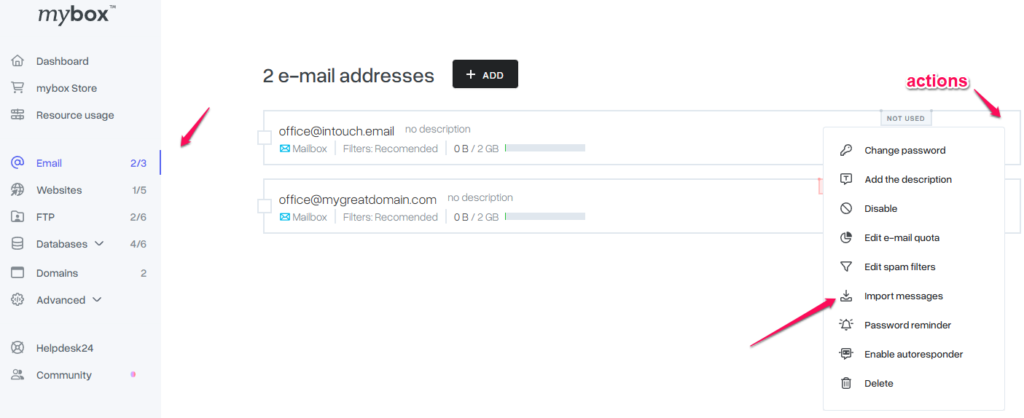
Step 1 - Go to the Email tab in your mybox panel.
Step 2 - Open Import messages Find the mailbox you want to import messages into, click Actions, and select Import messages from the list.
Step 3 - Enter your Gmail details In the form that appears, enter the following:
- Server address: imap.gmail.com
- Source mailbox: your Gmail address (e.g. [email protected])
- Password: the password for the Gmail account you are transferring from
Click Begin import.

What to expect: The import runs in the background. Once it’s complete, you’ll receive a confirmation notification in your destination mailbox. Depending on the number of messages, this may take a few minutes.You can also trigger the import directly when creating a new mailbox.
Need help with email migration?
If you’d prefer to have your email boxes migrated by the mybox team, you can activate the Website Migration add-on from the mybox Store. The add-on covers email migration alongside your website transfer.Learn more about website and email migration →