


Table of Contents
Updates in WordPress
As with any other software, WordPress sites need to be updated for the following reasons:
- Deploy security patches to fix vulnerabilities that are discovered
- Getting fixes and new functionalities in themes and plugins
As mentioned, the update has three parts – the WordPress core, themes, and plugins. You have options to manage them independently depending on your needs.
Theme updates

A theme is the backbone of your WordPress website and needs to work seamlessly with basic WordPress files. Although you use one theme at a time, it is possible to keep multiple themes installed on your website. Whether you have one or multiple themes, you’ll need to enable or disable auto-update on each theme individually.
After logging in to wp-admin, go to the Appearance > Themes section, and then after hovering over the selected theme, click on the Details option.
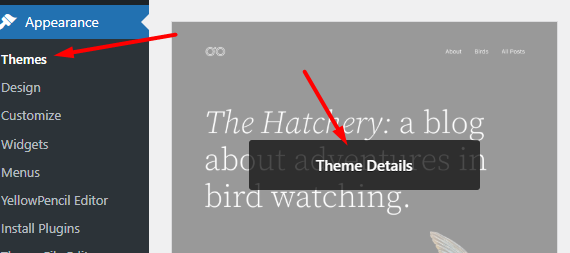
Just below the theme name and information about its author, you will find a link that will allow you to enable automatic updates.

Similarly, if automatic updates are active, you can deactivate them in the same place.
Plugin updates
To enable or disable automatic plugin updates, after logging in to wp-admin, go to the Plugins > Installed Plugins section in the menu on the left.

On the right side of each of the installed plugins, you will find an option to enable or disable automatic updates.
WordPress Core Updates
Unlike themes and plugins, WordPress enables automatic updates by default for core releases. There are two types of major releases available – major and minor. Major versions typically bring a lot of new features, while minor versions are released for safety/maintenance purposes.
Since WordPress 5.6, automatic updates for minor releases are enabled by default. You can change the settings in the Updates dashboard to get automatic updates for major or minor releases. While you can toggle between major and minor release updates, it’s not possible to completely disable core updates from the settings page.
