


y default, WordPress is designed as a blogging platform and displays your latest posts on the homepage. However, for most business, portfolio, or corporate websites, you may want visitors to see a custom page instead of a list of blog posts.
WordPress allows you to easily set any page as your website’s homepage.
Table of Contents
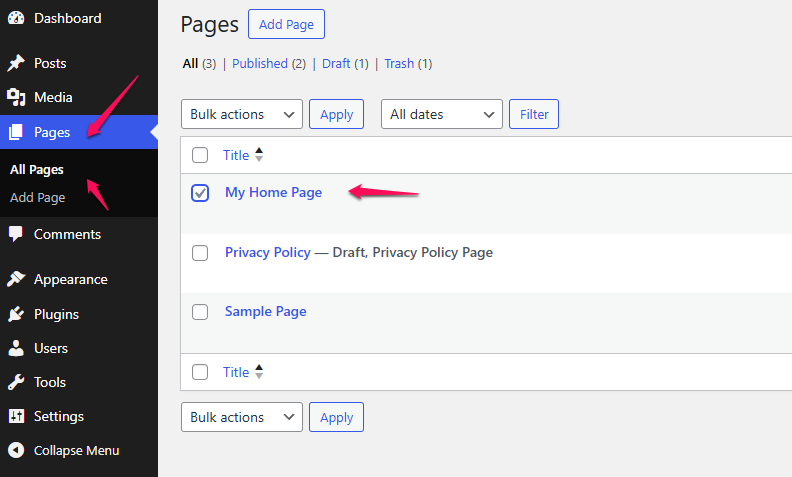
Step 1: Create a Home Page

Before assigning a homepage, you must first create the page you want to display.
- Log in to your WordPress administration panel.
- Navigate to:
Pages → All Pages- Click:
Add New- Create your page and add the desired content.
For example:
Homeor
My Home Page- Click:
Publishto save the page.
Step 2: Open Reading Settings
Once the page has been created:
- Navigate to:
Settings → Reading- Locate the section:
Your homepage displaysStep 3: Select a Static Page
By default, WordPress uses:
Your latest postsTo display a custom homepage:
- Select:
A static page- The homepage selection menu will become available.
- From the dropdown list, select the page you created earlier.
Example:
My Home Page

Step 4: Configure the Posts Page (Optional)
If your website includes a blog, you can create a separate page to display your posts.
For example:
- Create a page called:
Blog- Return to:
Settings → Reading- Under:
Posts pageselect:
BlogWordPress will automatically display all blog posts on that page.
Step 5: Save Changes
After selecting your homepage:
- Scroll to the bottom of the page.
- Click:
Save ChangesYour website will immediately begin displaying the selected page as the homepage.
Example Configuration
A typical business website configuration may look like this:
| Setting | Value |
|---|---|
| Homepage displays | A static page |
| Homepage | Home |
| Posts page | Blog |
This setup allows visitors to see your custom homepage while still keeping a separate blog section.
Verifying the Change
Open your website in a browser:
https://yourdomain.comYou should now see the selected page instead of the default list of posts.
Summary
To set a custom homepage in WordPress:
- Create a page that will serve as the homepage.
- Navigate to:
Settings → Reading- Select:
A static page- Choose your desired homepage from the dropdown menu.
- Save the changes.
Your selected page will now be displayed whenever visitors access your website’s main address.