


By default, WordPress and WooCommerce display categories in alphabetical order. While this works well for many websites, there are situations where you may want to arrange categories in a custom order to better match your website structure, navigation, or product hierarchy.
One of the easiest ways to achieve this is by using the Category Order and Taxonomy Terms Order plugin.
Table of Contents
Why Change Category Order?

Custom category ordering can be useful when:
Matching categories to your marketing strategy rather than alphabetical order.
Displaying featured categories first.
Organizing product categories by importance.
Improving website navigation.
Creating a more intuitive category structure.
Installation
Installing the Plugin
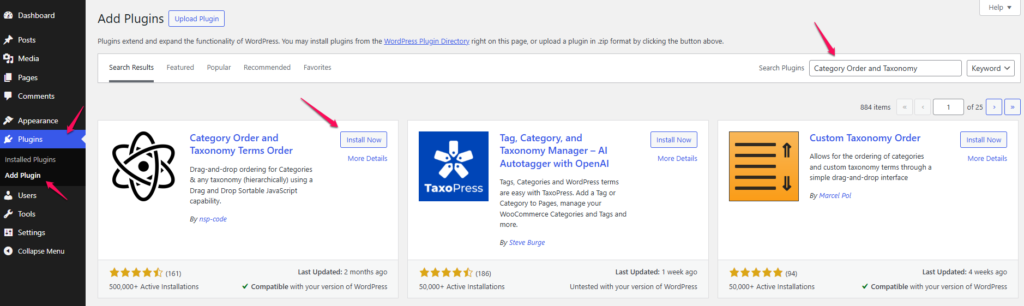
Step 1
Log in to your WordPress administration panel.
Step 2
Navigate to:
Plugins → Add NewStep 3
In the search field, enter:
Category Order and Taxonomy Terms OrderStep 4
Locate the plugin in the search results and click:
Install NowStep 5
Once the installation is complete, click:
Activate
Using the plugin
After activation, the plugin adds a category ordering interface to WordPress.
For Post Categories
- Navigate to:
Posts → Taxonomy Order- A list of your existing categories will appear.
- Drag and drop categories into the desired order.
- Click:
Updateto save your changes.

Reordering WooCommerce Product Categories
If WooCommerce is installed, the plugin can also manage product category order.
- Navigate to:
Products → Taxonomy Order- Drag and drop product categories into the preferred order.
- Click:
Updateto save the new arrangement.
How the Plugin Works
The plugin replaces the default alphabetical sorting with a custom order that you define manually.
This custom order can then be used by:
- WordPress category widgets.
- WooCommerce category listings.
- Many themes and page builders.
- Navigation elements that support taxonomy ordering.
Benefits of Drag-and-Drop Sorting
Using drag-and-drop ordering allows you to:
- Reorganize categories quickly.
- Avoid editing database records manually.
- Change category positions at any time.
- Maintain consistent category presentation across your website.
Notes
- The plugin does not modify category names or content.
- Category URLs remain unchanged.
- Existing products and posts remain assigned to their categories.
- Changes can be reverted at any time by rearranging the categories again.
Summary
To customize category order in WordPress or WooCommerce:
- Install and activate the Category Order and Taxonomy Terms Order plugin.
- Navigate to the taxonomy ordering section.
- Drag and drop categories into the desired order.
- Click Update to save the changes.
This provides a simple way to control how categories are displayed without modifying code or making direct database changes.