


WooCommerce is one of the popular plugins that will turn your WordPress website into an online store. Most popular themes offer an integrated store feature using a WooCommerce plugin. From testing the page speed control on GTmetrix and pingdom, it can often be concluded that the “wc-ajax=get_refreshed_fragments” element takes about a second to load. If you are having a problem with your WooCommerce Ajax call page speed, here are the solutions to help you solve this problem for different scenarios.
Table of Contents
What is wc-ajax=get_refreshed_fragments ?
Below is a screenshot of pingdom showing the long wait time for “wc-ajax=get_refreshed_fragments” to load on the page. You can also see that this script will be listed as a render-blocking issue in Google PageSpeed Insights and find it under the waterfall chart in GTmetrix.
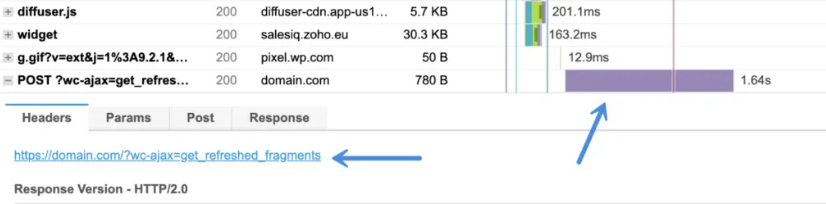

Basically, WooCommerce tries to collect the details of the cart by calling a script and it takes a lot of time. The plugin retrieves the uncached cart details on each page to show the latest cart items by calling admin Ajax.
On pages where the script appears, you can find it in the source, for example, in the following form:
Admin ajax references and page loading.
WooCommerce uses this cart slicing admin Ajax call to update the items and total in the cart without refreshing the page. Calling admin Ajax on each page will significantly delay the page loading time and also consume large server resources. Another problem is that the plugin performs this action even on a page that does not have a shopping cart or details related to the product.
For example, the problem exists on the “About Us” page, where there are no WooCommerce components available. So, deleting the shopping cart on the page will not help in improving the loading speed of the page. What we need is to disable cart updates, where there are no carts or products displayed.
How do I fix the problem with wc-ajax=get_refreshed_fragments?
The problem should be fixed by disabling the script by modifying the functions.php file of your theme.
You can modify functions.php through the WordPress admin panel or using FTP.
Instead of modifying the file functions.php the main theme, you can create a child theme and add additional features there. This will help you keep your changes when you update the main theme.
There are three options to disable the WooCommerce Ajax cart fragmentation script.
- Disable only cart fragmentation on the homepage
- Disable only cart fragmentation on your homepage and posts
- Disabling all WooCommerce styles and scripts on all pages except store pages.
Let’s discuss all three options in detail, but make sure to do only one of them.
Disable only cart fragmentation on the homepage
Log in to your WordPress admin panel, go to “Appearance > Theme File Editor” in the menu on the left, and locate the functions.php file. Add the following code at the end of the file.
/** Disable Ajax Call from WooCommerce */
add_action( 'wp_enqueue_scripts', 'dequeue_woocommerce_cart_fragments', 11);
function dequeue_woocommerce_cart_fragments() { if (is_front_page()) wp_dequeue_script('wc-cart-fragments'); }
It should look like below in the editor, after pasting the code click on “Update File or Update” to save the changes.

If you want to use FTP, log in to your server with an FTP account. Go to “/wp-content/your-theme/” and find the “functions.php” file. Edit and add the above code at the end of the file and upload the modified file back to the server.
Once the file is updated, go to the “WooCommerce > Settings” menu and go to the “Products” tabs. Enable the checkbox next to “Redirect to cart when product is added.”

This will help the customer to go to the main cart page instead of waiting for a long time after adding an item to the cart. Otherwise, even though an item is added, your cart may not show updated details when you are on the same page because the cart fragmentation script is disabled.
Disable only cart fragmentation on your homepage and posts
The above code will disable the cart snippet script only on the static home page. If you want to disable the script on all posts, try adding the following code in your theme’s function.php file.
/** Disable Ajax Call from WooCommerce on front page and posts*/
add_action( 'wp_enqueue_scripts', 'dequeue_woocommerce_cart_fragments', 11);
function dequeue_woocommerce_cart_fragments() {
if (is_front_page() || is_single() ) wp_dequeue_script('wc-cart-fragments');
}
Disabling all WooCommerce styles and scripts on all pages except store pages.
In a situation where you want to get the best result and you don’t need store elements on other subpages or in posts, you can use the script below by adding it to functions.php on the same principle as described above.
/** Disable All WooCommerce  Styles and Scripts Except Shop Pages*/
add_action( 'wp_enqueue_scripts', 'dequeue_woocommerce_styles_scripts', 99 );
function dequeue_woocommerce_styles_scripts() {
if ( function_exists( 'is_woocommerce' ) ) {
if ( ! is_woocommerce() && ! is_cart() && ! is_checkout() ) {
# Styles
wp_dequeue_style( 'woocommerce-general' );
wp_dequeue_style( 'woocommerce-layout' );
wp_dequeue_style( 'woocommerce-smallscreen' );
wp_dequeue_style( 'woocommerce_frontend_styles' );
wp_dequeue_style( 'woocommerce_fancybox_styles' );
wp_dequeue_style( 'woocommerce_chosen_styles' );
wp_dequeue_style( 'woocommerce_prettyPhoto_css' );
# Scripts
wp_dequeue_script( 'wc_price_slider' );
wp_dequeue_script( 'wc-single-product' );
wp_dequeue_script( 'wc-add-to-cart' );
wp_dequeue_script( 'wc-cart-fragments' );
wp_dequeue_script( 'wc-checkout' );
wp_dequeue_script( 'wc-add-to-cart-variation' );
wp_dequeue_script( 'wc-single-product' );
wp_dequeue_script( 'wc-cart' );
wp_dequeue_script( 'wc-chosen' );
wp_dequeue_script( 'woocommerce' );
wp_dequeue_script( 'prettyPhoto' );
wp_dequeue_script( 'prettyPhoto-init' );
wp_dequeue_script( 'jquery-blockui' );
wp_dequeue_script( 'jquery-placeholder' );
wp_dequeue_script( 'fancybox' );
wp_dequeue_script( 'jqueryui' );
}
}
}
Remember that by performing one of the above actions, you are interfering with the structure of the template and store settings. If you are not sure about the actions you are taking, consult them with your webmaster.