


WordPress allows you to change both the website language and the language used in the administration panel. This can be useful if WordPress was installed in a different language or if multiple users prefer different interface languages.
Table of Contents
Change the Website Language
To change the default language of your WordPress installation:
- Log in to the WordPress administration panel.
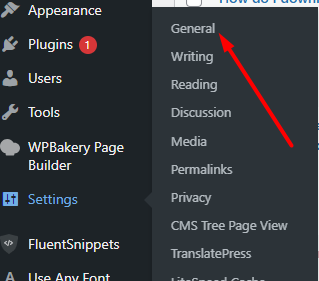
- Navigate to:

Settings → General
- Locate the Site Language option.
- Select your preferred language from the dropdown list.
- Scroll to the bottom of the page and click Save Changes.
WordPress will automatically download the required language files if they are available.
Change the Language for Your User Account
WordPress also allows each user to choose their own administration panel language independently of the website language.
If the website language has been changed but your dashboard is still displayed in another language:
- Log in to the WordPress administration panel.
- Navigate to:
Users → Profile
- Locate the Language option.
- Select your preferred language from the dropdown list.
- Click Update Profile.
The administration panel will immediately switch to the selected language for your account.

Why Are Some Elements Still Displayed in Another Language?
If certain parts of the website remain untranslated after changing the language settings, the cause is usually one of the following:
- The active theme does not include translations for the selected language.
- A plugin has not been translated.
- Some text has been manually added by the theme developer.
- Translation files are outdated or incomplete.
In these situations, changing the WordPress language setting alone may not translate all visible content.
Updating Translation Files
To ensure you have the latest available translations:
- Go to:
Dashboard → Updates
- Click:
Update Translations
if the option is available.
This will download the latest translation files for WordPress, themes, and plugins.
Summary
To change the language in WordPress, navigate to Settings → General and select a new language under Site Language. If only your administration panel remains in a different language, you can change it separately through Users → Profile. Keep in mind that some themes and plugins may contain their own untranslated content and may not fully follow the global language settings.