


Changing the user assigned to a MySQL database is a two-step process: you must first grant access to a new user and then revoke access from the previous one. This ensures your website or application maintains a continuous connection to its data during the transition.
Table of Contents
Context
Each database in the mybox panel is protected by user permissions. You may need to change a database user if you are improving security, separating access for different developers, or rotating credentials after a staff change.
Phase 1: Assign a new user

To grant a new user access to your database:
- Navigate to MySQL Users: Log in to the mybox panel and go to the Databases module, then select the MySQL Users tab.
- Create or Select a User: You can either create a new user or select an existing one from the list.
- Link the Database: In the user creation or edit form, find the Assigned databases section.
- Set Permissions: Select the specific database you want this user to manage and choose the appropriate permission level (e.g., All Privileges or Read-Only).
- Confirm: Click Add MySQL User or Save Changes.
Phase 2: Revoke the previous user’s access
Once the new user is successfully connected and your website configuration (like wp-config.php) has been updated with the new credentials, you should remove the old user’s access.
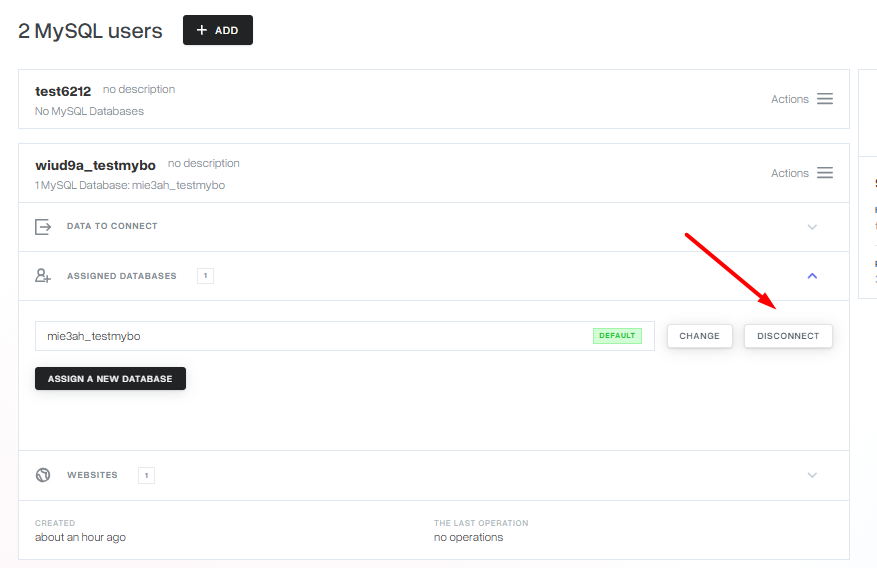
- Open User Details: In the MySQL Users list, click on the name of the user you wish to disconnect.
- Manage Assignments: In the expanded menu, click on Assigned databases.
- Disconnect: Locate the database in the list and click the Disconnect button. The user will immediately lose access to that specific database.
Distinction: Deleting a User vs. Disconnecting a User
- Disconnecting: Removes the user’s “key” to a specific database. The user account still exists and may still have access to other databases.
- Deleting: Completely removes the user from the mybox panel. They will lose access to all assigned databases simultaneously.
Practical Implications
- Update Configuration Files: Before disconnecting the old user, ensure your website’s configuration file (e.g.,
configuration.phpfor Joomla or.envfor Laravel) is updated with the new username and password. If you skip this, your website will display a “Database Connection Error.” - Propagation: Changes to database permissions in the mybox panel happen instantly. There is no waiting period for these settings to take effect.
- Security Best Practice: It is safer to have the new user active and tested before revoking the old one to avoid any site downtime.
Summary
Managing database access is a straightforward balancing act: first, ensure the new “key” works, then retire the old one. By using the MySQL Users tab in the mybox panel, you maintain granular control over who can interact with your data.