


Table of Contents
Context
SSH access allows you to connect securely to your hosting environment and manage files, services, or deployments through the command line. In mybox, SSH can be activated directly from the control panel.
Steps to activate SSH
1. Log in to the mybox panel, then go to the “Advanced” tab and select “Secure Shell (SSH)” and click the green “Activate SSH Service” button.

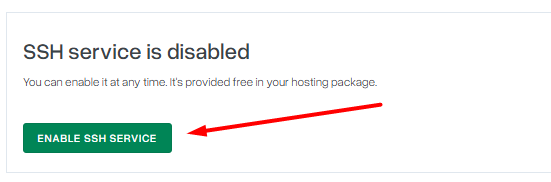

2. In the next step, you just need to set a password and click on “Activate SSH Service” to enable access to your SSH account.

3. You will be informed about the activation of your account and you will receive the necessary login details. You have the option to deactivate your account and change your password.
The SSH password during activation is synchronized with your the mybox panel password.
However, you need to keep in mind that changing the password to the mybox panel does not change the SSH password and once this option is activated, you can change it by specifying another access password active exclusively for SSH, which we recommend you do right away to avoid danger in case of hacking.