


After adding (parking) a domain in the mybox Panel, you can activate email services for that domain and start creating mailboxes.
Table of Contents
Step 1: Open the Domain Settings
Log in to the mybox Panel and navigate to:
Domains
Locate the domain for which you want to enable email service and click on it to expand the available options.
Step 2: Activate the Mail Service
In the domain settings, find the option:
Mail Serviceand click:
Activate e-mail
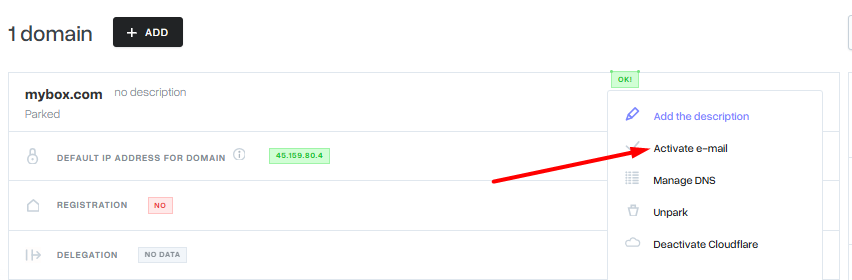
Once the activation process is completed, you will be able to create and manage email accounts associated with the domain.
Possible Activation Errors
In some cases, you may see the following message:
The parked domain was not delegated correctly, or the new domain configuration was not read. Please try again on the hour.This message usually indicates one of the following issues.
DNS Propagation Is Still in Progress
If you recently changed the domain’s DNS servers or DNS records, the changes may not yet be visible across the entire internet.
DNS propagation can take up to:
24 hoursDuring this period, mail service activation may temporarily fail.
Incorrect MX Records
If your domain uses external DNS servers, the DNS zone must contain the correct MX records required for mybox email service.
If the MX records are missing or point to another provider, activation may not be possible until the DNS configuration is corrected.
Domain Configuration Has Not Yet Been Updated
In some situations, the system may still be processing the newly added domain.
Waiting a short period and trying again later often resolves the issue.
Verifying Your DNS Configuration
Before activating email service, ensure that:
- The domain has been added to your mybox account.
- The domain is delegated correctly (if using mybox nameservers).
- The required MX records are configured properly (if using external DNS).
- DNS propagation has completed.
Need Help?
If you are unsure whether the domain is configured correctly or the activation error persists, contact the mybox support team through the support section of the mybox Panel.
When opening a ticket, include:
- The domain name
- A description of the error message
- Information about whether you use mybox DNS servers or external DNS servers
The support team can verify the DNS configuration and help identify the cause of the problem.
Summary
To activate email service for a domain:
- Open Domains in the mybox Panel.
- Select the desired domain.
- Locate Mail Service.
- Click Activate.
- If an error appears, verify:
- DNS propagation status
- MX record configuration
- Domain delegation settings
Once activation is successful, you can begin creating and using mailboxes for the domain.