


FileZilla is a free, open-source, and easy-to-use FTP client that lets you transfer files between your computer and your hosting space.
You can use it to upload website files, download existing files, or manage the directory structure of your hosting account. FileZilla supports FTP, SFTP, and FTPS, including encrypted connections over TLS.

To get started, download FileZilla from the official website and install it on your computer.
Table of Contents
Before you connect
To connect to your hosting account through FileZilla, you need the following details:
- the FTP host, shown in the mybox panel in the FTP section;
- the username of your FTP account;
- the password of your FTP account;
- the connection port, usually 21 for FTP/FTPS.
The login details must belong to an FTP account created earlier in mybox. If you do not have an FTP account yet, create one before configuring the connection in FileZilla.
Quick FTP connection
This method is useful when you want to connect quickly without saving the connection in FileZilla.
- Open FileZilla.
- In the top bar, fill in the connection fields:
- Host - enter the FTP host shown in the mybox panel, in the FTP section;
- Username - enter the username of your FTP account;
- Password - enter the password of your FTP account;
- Port - enter 21, or leave the field empty if you are using the default port.
- Click Quickconnect.
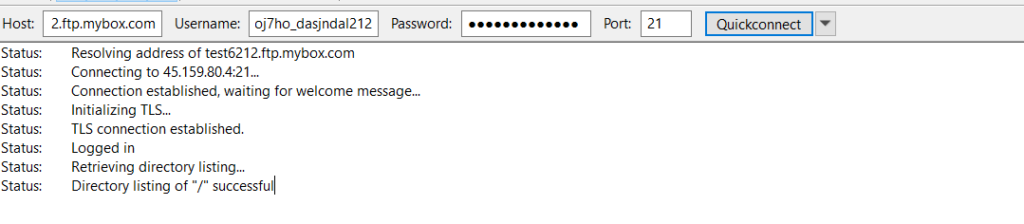
After connecting, the left side shows the files on your computer, and the right side shows the files on the server. You can transfer files by dragging and dropping them from one side to the other.
Configuring an FTPS connection in Site Manager
For regular use, it is better to save the connection in Site Manager. This method is more practical and lets you explicitly configure connection encryption.
- Open FileZilla.
- Go to File > Site Manager, or use the CTRL + S keyboard shortcut.
- In the new window, click New Site.
- Choose a name for the connection, such as your domain name or hosting account name.
- In the General tab, fill in the fields as follows:
- Host - enter the FTP host shown in the mybox panel;
- Port - enter 21;
- Protocol - select FTP – File Transfer Protocol;
- Encryption - select the option that requires FTP over TLS, if available;
- Logon Type - select Ask for password;
- User - enter the username of your FTP account.
- Click Connect.
- Enter the FTP account password when FileZilla asks for it.
- If a certificate confirmation window appears, check the displayed information and click OK to continue connecting.

