


A popular free program for securely transferring files via SSH (SCP/SFTP) and FTP.
WinSCP offers two interfaces to choose from: one with panels resembling Total Commander, the other with a single pane resembling Windows Explorer. The transmission is encrypted, with AES, Blowfish, 3DES and DES cryptographic protocols available. The SSH protocol is supported in both version 1 and 2. The program is easy to use, and at the same time has a lot of useful features, e.g. for people uploading files to a web server via SSH.

Download WinSCP from the manufacturer’s website.
1. After turning on WinSCP, go to the Session tab.
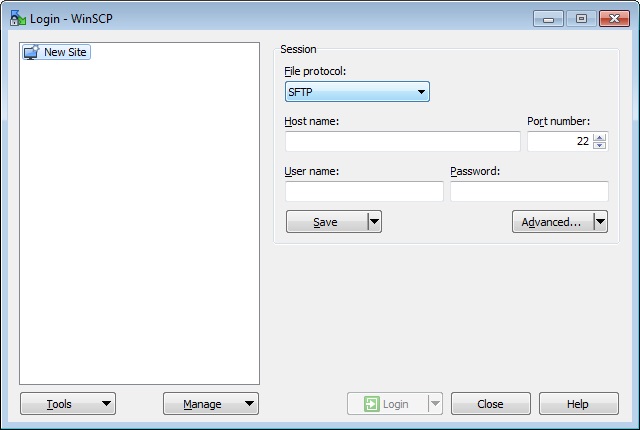
- Hostname – enter the host from the System Information tab from the the mybox panel (the tab is on the right)
- Port – (optional) enter 21
- Username – enter the details of our FTP account previously created in the mybox panel
- Password – leave blank
- File protocol – select FTP
If you want to save data to the FTP server, select the Save button.
2. In order to connect to the FTP account, click the Login button.