


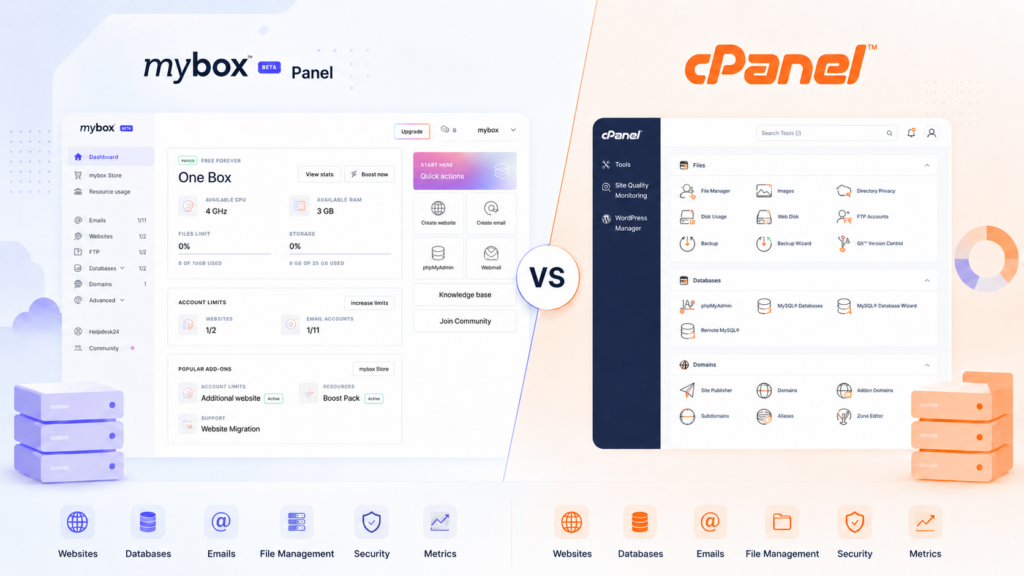
When choosing a hosting service, the control panel is one of the most important parts of the experience. This is where users manage websites, domains, email accounts, FTP access, databases, SSL certificates, backups, cron jobs, SSH access, Redis, and other hosting settings.
In this article we will compare are the mybox panel and cPanel. Both are used to manage web hosting, but they are built with different approaches. cPanel is a traditional hosting control panel with many separate tools, while the mybox panel is designed around a cleaner, more guided dashboard where the most important hosting sections are easier to find.
Table of Contents
What is cPanel?

cPanel is one of the most widely used hosting control panels. It gives users access to many tools for managing websites, domains, email, databases, files, backups, SSL certificates, DNS records, cron jobs, and other hosting features.
Its main advantage is that it is complete and familiar to many experienced hosting users. However, because it contains many icons, sections, and technical options, it can feel complicated for beginners.
In cPanel, users often need to know which tool they need before they can complete a task. For example, managing a website may involve several separate areas, such as Domains, File Manager, MySQL Databases, SSL/TLS, Redirects, and DNS Zone Editor.
What is the mybox panel?
The mybox panel is the control center for managing a mybox hosting service. It is built around a modern sidebar interface that groups the main hosting functions into clear sections.
From the mybox panel, users can access areas such as:
- Dashboard
- mybox Store
- Resource usage
- Emails
- Websites
- FTP
- Databases
- Domains
- Advanced tools
- Helpdesk24
- Community
This structure makes the panel easier to understand because users can quickly see where each type of hosting action belongs.
For example, database management is grouped under Databases, where users can access MySQL Databases, MySQL Users, Remote MySQL Access, and phpMyAdmin. Advanced features are grouped under Advanced, where tools such as CRON Jobs, SSH, and Redis Server are available.
Main difference between mybox panel and cPanel
The main difference is how the information is organized.
cPanel works like a large hosting toolbox. It gives users many separate tools, usually displayed as icons or grouped categories.
The mybox panel works like a guided hosting dashboard. It organizes the most important hosting features into a clear sidebar, so users can move between sections more easily.
This makes mybox easier for users who want to manage hosting without being overwhelmed by too many technical options at once.
Interface and navigation
cPanel usually displays many tools on the screen. This is useful for experienced users, but it can be confusing for beginners because many options look similar or require technical knowledge.
The mybox panel uses a simpler sidebar layout. The most important sections are visible immediately, and each section has a clear name. For example, users can easily understand where to go for Emails, Websites, FTP, Databases, Domains, or Advanced settings.
Another useful detail in the mybox panel is that usage counters are visible directly in the sidebar. For example, users can see how many email accounts, websites, FTP accounts, and databases they are currently using.
This makes the panel more transparent because users do not need to search through multiple pages to understand their current limits.
Dashboard and quick actions
The mybox dashboard gives users a quick overview of their hosting service. It can show the current package, available CPU, available RAM, storage usage, file limits, account limits, and popular add-ons.
From the dashboard, users can also access quick actions such as:
- Create website
- Create email
- Open phpMyAdmin
- Open Webmail
- View the knowledge base
- Join the community
This makes the dashboard more than just a statistics page. It acts as a starting point for the most common hosting actions.
In cPanel, similar tools may exist, but they are usually spread across different sections. For example, email creation, phpMyAdmin, file usage, backups, and resource usage are usually separate tools or widgets.
Managing websites
In cPanel, website management may require using several different tools. Users may need to access Domains, File Manager, Databases, SSL tools, redirects, and application installers depending on what they want to do.
In the mybox panel, websites have their own dedicated section. Users can view existing websites, add new ones, filter the list, access actions for each website, and see useful information such as the PHP version or installation status.
Inside a website’s details, the mybox panel can show information such as:
- Website catalog/path
- PHP version
- PHP open_basedir status
- Assigned IP
- SSL certificate status
- Let’s Encrypt status
- Backup section
- Analytics section
- Related settings
This makes website management clearer because the main information about a website is grouped in one place.
Managing SSL certificates
Both cPanel and the mybox panel can support SSL certificate management.
In cPanel, SSL may be handled through AutoSSL or other SSL tools provided by the hosting company. Users may also have options for forcing HTTPS redirects or managing certificates manually.
In the mybox panel, SSL information is shown inside the website details. Users can see whether the website is secured by an SSL certificate and whether Let’s Encrypt generation is enabled or disabled for that site.
This makes SSL status easier to understand because it is connected directly to the website being managed.
Managing emails
cPanel has strong email management features. Users can create email accounts, access webmail, set forwarders, configure autoresponders, manage filters, and use other email-related tools.
The mybox panel also gives users a dedicated Emails section. Users can view existing email addresses, add new ones, access Webmail, check configuration details, and see mailbox status.
The panel can show useful email connection details, such as:
- IMAP server
- POP3 server
- SMTP server
- Standard ports
- SSL/TLS ports
It can also provide access to tools such as:
- Webmail
- Configuration
- Default settings
- Global blacklist and whitelist
- Mail logs
This is useful because users do not need to search documentation manually for basic email configuration details. The most important connection information is visible directly in the panel.
Managing FTP
FTP access is used to upload, download, and manage website files.
In cPanel, FTP accounts are usually managed from a dedicated FTP Accounts section. Users may also need to understand paths, directories, and permissions.
In the mybox panel, FTP is shown as a separate section in the main sidebar. Users can view existing FTP accounts, add new ones, search accounts, and access actions for each account.
The FTP section also displays practical connection information, such as:
- FTP host
- FTP user
- Port
- Home directory
- Server path
This makes it easier for users to configure an FTP client because the required details are visible in the same section.
Managing databases
Databases are one of the most important parts of many websites, especially WordPress websites and other dynamic applications.
In cPanel, databases are usually managed through tools such as MySQL Databases, MySQL Database Wizard, phpMyAdmin, MySQL Users, and Remote MySQL.
The mybox panel also includes database management tools. Under the Databases section, users can access:
- MySQL Databases
- MySQL Users
- Remote MySQL Access
- phpMyAdmin
Users can create and manage MySQL databases, manage MySQL users, assign users to databases, and access databases through phpMyAdmin.
The mybox panel also shows useful database connection information, such as:
- MySQL host
- MySQL port
- Database size
- Database user
- Remote access status
For Remote MySQL Access, the panel can show the current IP address and whether that IP is authorized to connect to the database server. Users can add allowed IP addresses for remote database connections, depending on the account limits.
This means mybox does not only provide a simplified database section. It also includes important advanced database tools, including phpMyAdmin and remote MySQL access.
Managing domains
In cPanel, domain management can include several tools such as Domains, Subdomains, Aliases, Redirects, and Zone Editor.
This gives users a lot of control, but it can be difficult for beginners to understand the difference between a domain, subdomain, addon domain, alias, DNS record, and redirect.
In the mybox panel, domains have their own section in the sidebar. This makes it easier for users to identify where domain-related actions belong.
For users who are new to hosting, this clearer separation can reduce confusion between domains, websites, DNS, and email services.
Advanced tools
cPanel includes many advanced features, depending on what the hosting provider enables. These may include cron jobs, terminal access, Git tools, PHP settings, DNS tools, SSL tools, and other developer features.
The mybox panel also includes an Advanced section. Based on the panel structure, this section includes tools such as:
- CRON Jobs
- SSH
- Redis Server
These tools are useful for developers or advanced users.
For example, the CRON Jobs section allows users to add scheduled tasks. When adding a CRON job, users can choose a profile, select the program, set the path to the script, define the working directory, choose the interval, and optionally add a description.
This makes CRON job creation more guided than manually writing a full cron expression from the beginning.
Resource usage and account limits
One important difference between the mybox panel and many traditional cPanel setups is how clearly resource usage is presented.
In the mybox panel, usage counters are visible directly in the sidebar. For example, users can see limits for:
- Email accounts
- Websites
- FTP accounts
- Databases
- Domains
The dashboard can also show hosting resources such as:
- Available CPU
- Available RAM
- File usage
- Storage usage
- Account limits
- Popular add-ons
This helps users understand their hosting account at a glance.
In cPanel, resource usage may also be available, but it depends on the hosting provider, the cPanel theme, and additional tools such as CloudLinux or resource usage plugins. In many cases, resource information is shown in a separate sidebar or statistics section.
The mybox panel makes these limits more visible and easier to follow.
Store, upgrades, and add-ons
The mybox panel includes direct access to mybox Store, an Upgrade button, and add-on options such as additional websites, Boost Pack, and website migration.
This shows that the panel is not only a technical hosting interface, but also a service management area. Users can manage their hosting service, check usage, and increase limits or resources from the same environment.
In cPanel, service upgrades, billing, add-ons, and product management are usually handled outside cPanel, often in a separate client area provided by the hosting company.
This is an important difference. The mybox panel is more closely connected to the full hosting service experience, while cPanel is mainly focused on technical hosting management.
Help and community access
The mybox panel also includes direct access to Helpdesk24, Knowledge base, and Community.
This is useful because users can quickly move from managing their hosting to getting help or joining the community.
In cPanel, support options usually depend on the hosting provider. cPanel itself is the control panel, but helpdesk access is often located in a separate client area or external support platform.
By including help and community options in the panel, mybox makes support easier to reach.
Comparison table
| Area | cPanel | mybox panel |
|---|---|---|
| Main style | Traditional hosting control panel | Modern sidebar dashboard |
| Navigation | Many tools and icons | Clear sections in one sidebar |
| Best for | Experienced users, agencies, developers | Beginners, business users, and users who want a simpler experience |
| Dashboard | Tool-focused overview, depending on provider theme | Hosting overview with CPU, RAM, storage, account limits, add-ons, and quick actions |
| Website management | Split across domains, files, databases, SSL, and other tools | Dedicated Websites section with website details, SSL status, backups, analytics, and actions |
| Email management | Feature-rich, with many separate email tools | Dedicated Emails section with Webmail, configuration details, filters, blacklist/whitelist, and mail logs |
| FTP management | Available through FTP tools | Dedicated FTP section with host, user, port, home directory, and path information |
| Database management | MySQL Databases, MySQL Users, phpMyAdmin, Remote MySQL | MySQL Databases, MySQL Users, phpMyAdmin, Remote MySQL Access, host/port details, and usage limits |
| Domain management | Advanced but sometimes complex | Dedicated Domains section |
| SSL management | AutoSSL/SSL tools depending on provider | SSL information shown directly inside website details |
| CRON jobs | Available through Cron Jobs tool | Guided CRON job form with profile, program, path, working directory, interval, and description |
| SSH | Available if enabled by provider | Available in Advanced section |
| Redis | Possible if enabled by provider/server setup | Redis Server available in Advanced section |
| Resource visibility | Depends on provider/theme | Usage counters visible in sidebar and dashboard |
| Store/service management | Usually outside cPanel | mybox Store, Upgrade, add-ons, and resource options available directly in the panel |
| Support access | Usually separate from cPanel | Helpdesk24, Knowledge base, and Discord Community links visible in the panel |
| Learning curve | Higher for beginners | Easier to understand |
Which panel is easier for beginners?
The mybox panel is easier for beginners because the main sections are clearly visible and named in a simple way.
A beginner can quickly understand that:
- Emails is for mailboxes
- Websites is for websites
- FTP is for file access
- Databases is for MySQL databases, users, phpMyAdmin, and remote access
- Domains is for domain management
- Advanced is for tools like CRON Jobs, SSH, and Redis Server
In cPanel, the same actions are possible, but they may be spread across many different icons and categories. This gives more flexibility, but it can also create confusion for new users.
Which panel is better for advanced users?
cPanel is very familiar to many advanced users because it has been used by hosting providers for many years. Developers, agencies, and system administrators often already know where to find the tools they need.
The mybox panel can also be useful for advanced users because it includes developer-focused tools such as CRON Jobs, SSH, Redis Server, MySQL Users, phpMyAdmin, and Remote MySQL Access.
The difference is that mybox groups these tools in a cleaner interface instead of mixing them with many other hosting features. This means mybox can be simple for beginners while still offering advanced options for users who need them.
Conclusion
Both cPanel and the mybox panel help users manage web hosting, but they offer different experiences.
cPanel is a powerful and traditional hosting control panel with many separate tools. It is familiar to experienced users, but it can feel complicated for beginners.
The mybox panel is designed as a cleaner and more modern hosting dashboard. Its sidebar structure makes it easier to find important sections such as Emails, Websites, FTP, Databases, Domains, and Advanced tools. It also shows usage counters directly in the panel, provides quick access to phpMyAdmin and Webmail, displays useful connection information, and connects hosting management with upgrades, add-ons, support, and community features.
For users who want a classic hosting toolbox, cPanel remains a familiar option. For users who want a clearer, more guided, and easier-to-navigate hosting experience, the mybox panel offers a more modern approach.