


The htop tool is an interactive process manager for Linux systems that allows you to monitor and manage running processes in real time.
It also lets you terminate (kill) processes directly from its interface.
Table of Contents
Step 1: Start htop

Run the command:
htop
This will open the interactive process viewer.
Step 2: Find the process
Inside htop, locate the process you want to stop.
You can:
- scroll through the list using arrow keys
- sort processes by CPU or memory usage
- search for a process (depending on configuration)
Step 3: Select the process
Use the arrow keys to highlight the process you want to terminate.
Step 4: Kill the process
Press:
- F9 (Kill command)
or sometimes:
- k
This will open the signal selection menu.
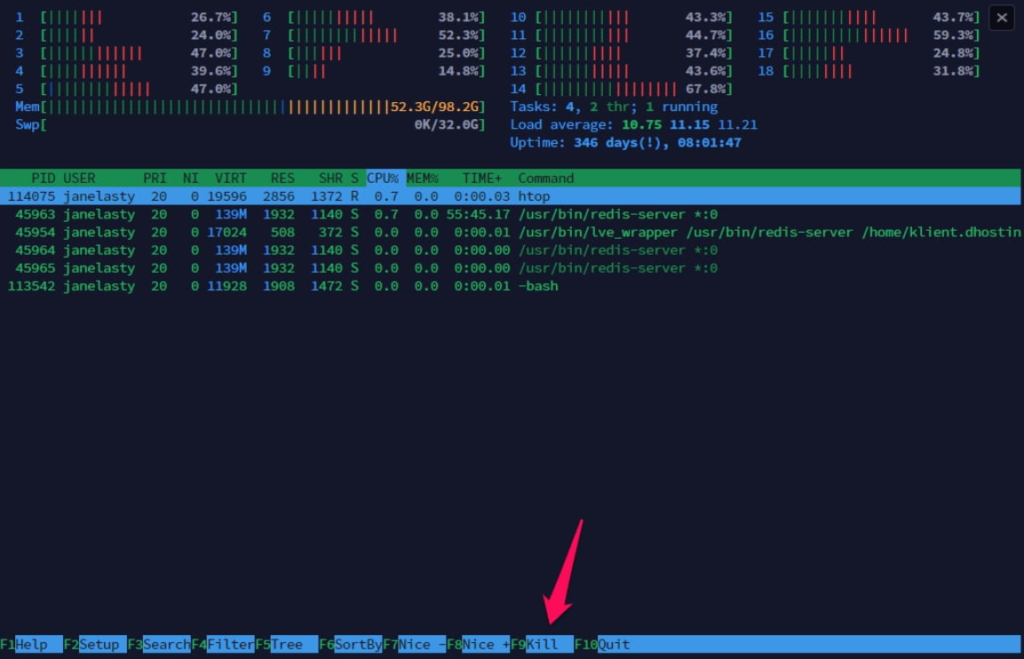
Step 5: Choose a signal
You will be prompted to select a signal to send to the process.
Common options include:
15 (SIGTERM)– gracefully stops the process9 (SIGKILL)– forcefully terminates the process
After selecting, press Enter to confirm.
Optional: Stop or suspend a process
In some cases, you may want to temporarily suspend a process instead of killing it:
- F7 / F8 – adjust process priority (nice value)
- Ctrl + Z (outside htop) – suspend process in shell
Important notes
- Always try
SIGTERMfirst before usingSIGKILL - Killing critical system processes may cause instability
- Some processes may restart automatically if managed by services (e.g. systemd)
Summary
To close a process in htop, select it, press F9, choose a termination signal, and confirm. This allows quick and interactive process management directly from the terminal.