


Two-factor authentication (2FA) adds a second verification step when logging in to the mybox panel. After entering your password, the panel asks for a one-time code generated by an app on your phone. This makes your account significantly harder to access without your physical device.
Table of Contents
Before you start
Install an authenticator app on your phone. The most common options are:
How to enable 2FA

1. Log in to the mybox panel.
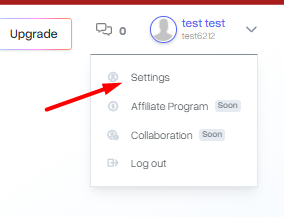
2. Click your name in the top-right corner and select Settings.
3. Go to the Account Verification (2FA) tab. The current status of two-st3ep verification is shown here.
4. Click Enable

5. For security, enter your panel password and click Authorize.

6. A QR code will appear on the next page. Scan it with your authenticator app.

7. Your app will display a 6-digit code that refreshes every 30 seconds. Enter it in the field provided.
8. Optionally, check Add this device to trusted list if you log in frequently from the same browser. Trusted devices skip the 2FA step on future logins.
9. Click Activate 2FA to complete the setup.
What to expect after activation
Every time you log in from a new or untrusted device, the panel will ask for a 6-digit code after your password. Open your authenticator app, enter the current code, and access is granted.
If you lose access to your authenticator app, contact support to verify your identity and reset 2FA.