


In mybox, you can forward incoming emails from a mailbox to one or more additional recipients. This allows you to automatically copy messages to other internal mailboxes or external email addresses.
This feature is useful for shared inboxes, backups, or forwarding messages to external systems.
Table of Contents
How to add additional recipients
1. Open the Email section
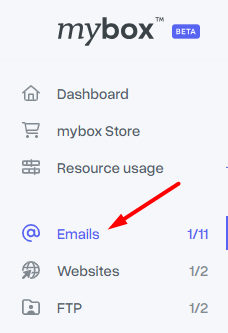

Log in to the mybox panel and go to the Email section.
This section contains all active email accounts associated with your domain.
2. Select the mailbox

From the list of email accounts, click the row of the mailbox you want to configure.
This will expand additional configuration options.
3. Open “Additional recipients”

Find and expand the Additional recipients tab.
Here you will see two options:
Add recipients (internal)
Allows you to select email addresses that already exist within mybox.
These recipients will receive forwarded copies of incoming messages.
Add external recipient
Allows you to add an external email address (outside mybox).
Messages will also be forwarded to this external mailbox.

Practical implications
- forwarding works automatically for all incoming messages
- multiple recipients can be added
- internal and external forwarding can be combined
- original emails remain in the main mailbox unless filtered otherwise
Summary
The “Additional recipients” feature allows forwarding emails from a mailbox to other internal or external addresses directly from the Email section in mybox, providing flexible message distribution without changing the original mailbox setup.