


By default, for domains that are registered or parked in mybox.com and delegated to our DNS servers, we provide DKIM and SPF records present in the DNS zone by default.
However, sometimes there is an additional requirement for the presence of a DMARC record.
Table of Contents
What is DMARC?
A DMARC (Domain-based Message Authentication, Reporting, and Conformance) record is an extension of the protection that SPF and DKIM records provide, except that DMARC allows you to specify stricter rules for the server that receives messages from your domain. It is also an advantage, assuming that the target server performs such verification, that you avoid treating the email you receive as SPAM.
Where to get the content of the DMARC record to add in the DNS zone?

One of the services where you have the opportunity to generate the content of the record is: https://mxtoolbox.com/DMARCRecordGenerator.aspx
Once you are on the website, enter your domain name in the form field, then click on the “Check DMARC Record” button
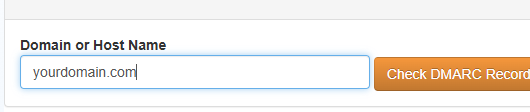
On the page that appears, you will receive information about what the entry in the DNS zone should look like, so for example:
Type: TXT
Host/Name: _DMARC.yourdomain.com
Value: v=DMARC1; p=none; rua=mailto:[email protected]; ruf=mailto:[email protected]; fo=1
In the section on the left, you have the option to modify the email addresses to which any irregularity notifications will be received:

For example, after writing down information about what your entry should look like in your notebook, you can click on the “Finalize Record” button, which will bring up a pop-up that will allow you to create an account on MXToolbox and receive additional notifications.
Adding a record in the mybox panel
To add a record, log in to the mybox panel, then go to the “Domains”

Select a domain from the list and click on its name to expand more options. There, select “Parked” and click on the “Manage DNS” button.
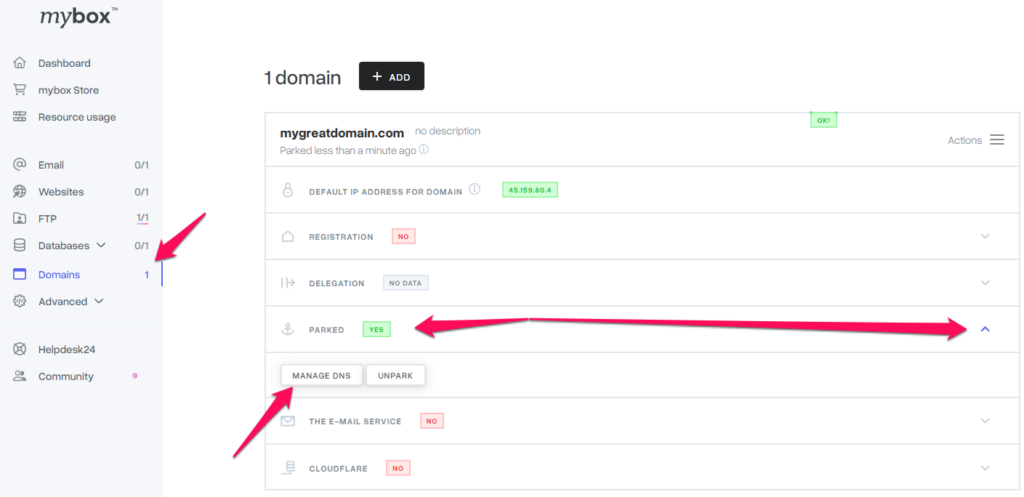
On the page that loads, select the “+Add Record” button.

Fill in the box that appears as the example:

Successively:
- Name: _dmarc – enter the value in lowercase letters.
- Type: TXT
- Value: Here, paste the content you have received on the generator page.
- TTL: 900s – this is the default value. You can leave it as it is.
When you are done entering, click the “+Add DNS record” button.
DMARC Builder in the mybox panel
To add a record via the wizard, log in to the mybox panel, then go to the “Domains”
Select a domain from the list and click on its name to expand more options. There, select “Parked” and click on the “Manage DNS” button.
Then, in the “Actions” menu, select “DMARC Builder”

In the box that appears, specify the action and enter your email address, then click the “Add” button

Edit a record
To edit a record through the wizard, log in to the mybox panel, and then go to the “Domains”
Select a domain from the list and click on its name to expand more options. There, select “Parked” and click on the “Manage DNS” button.
Then, click the “Edit” button next to the DMARC record and make the modifications. Then confirm them by clicking the “Edit DNS record” button.

Adding or modifying records in the DNS zone requires the so-called propagation, i.e. broadcasting changes on the Internet, which can take up to 24 hours.