


This guide explains how to configure a Mybox email account in the Microsoft Outlook app for Android using manual IMAP settings.
IMAP allows email synchronization between your device and the mail server, while SMTP is used for sending outgoing messages.
Table of Contents
Requirements

Before starting, ensure you have the following:
- A valid Mybox email account (for example: [email protected])
- The email account password
- Microsoft Outlook installed from Google Play Store
- An active internet connection
Step 1: Install and Open Outlook
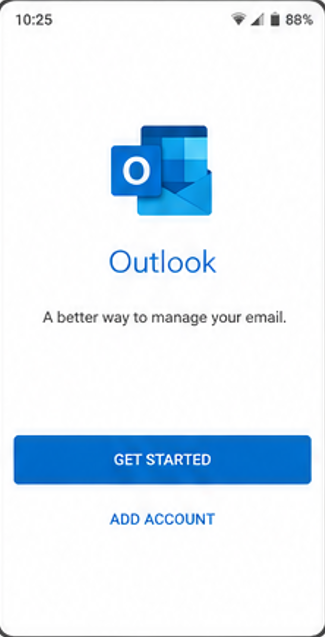
Install Microsoft Outlook from the Google Play Store and open the application.
When the app launches, you will see the welcome screen with options to begin setup.
Step 2: Start Adding an Account

Tap “Get Started”.
Enter your full Mybox email address (for example: [email protected]).
Tap “Continue”.
Step 3: Select Manual Setup (IMAP)

If Outlook attempts automatic configuration:
- Select “Change provider” or “Not Exchange?”
- Choose “IMAP” from the list of available account types
Step 4: Enable Advanced Settings

Enable the “Advanced Settings” option.
This allows manual configuration of incoming and outgoing mail servers.
Step 5: Configure Incoming Mail (IMAP)

Enter the following values:
- Email address: your full Mybox email address
- Username: your full email address
- Password: your email account password
- IMAP server: imap.mybox.com
- Port: 993
- Security type: SSL/TLS
Save or proceed to the next step.
Step 6: Configure Outgoing Mail (SMTP)

Enter the outgoing mail settings:
- SMTP server: smtp.mybox.com
- Username: your full email address
- Password: your email password
- Port: 587
- Security type: STARTTLS (TLS)
Ensure authentication is enabled using the same credentials as incoming mail.
Step 7: Finish Setup

Confirm the configuration and tap the checkmark or sign-in button.
Outlook will verify the settings and complete the account setup.
If the configuration is correct, the inbox will load automatically.
Step 8: Verify Synchronization

After setup is complete:
- Send a test email to confirm outgoing mail works
- Check that incoming emails are synchronized properly
- Allow a few minutes for initial synchronization
Troubleshooting
Login issues
- Verify email address and password
- Confirm IMAP access is enabled for the mailbox
Cannot send emails
- Verify SMTP server is smtp.mybox.com
- Ensure port 587 with STARTTLS is used
No email synchronization
- Confirm IMAP server is imap.mybox.com
- Check internet connection or mobile data restrictions
- Disable battery optimization for Outlook if needed
Configuration Summary
| Setting | Value |
|---|---|
| IMAP Server | imap.mybox.com |
| IMAP Port | 993 |
| IMAP Security | SSL/TLS |
| SMTP Server | smtp.mybox.com |
| SMTP Port | 587 |
| SMTP Security | STARTTLS |