


In the mybox dashboard, the Email section acts as a central hub for managing your communication infrastructure. Here, you can monitor resource usage, adjust security settings, and configure how your mailboxes interact with other services.
To view your email accounts, log in to the mybox panel and select Email from the menu. You will see a list of all addresses grouped by domain, including their associated aliases.
Table of Contents
Accessing Mailbox Details

To view the specific configuration of an email account, click on the row where the mailbox is located.
Note: If a mailbox displays the status “not used,” it means the account has been created but no one has logged into it yet.
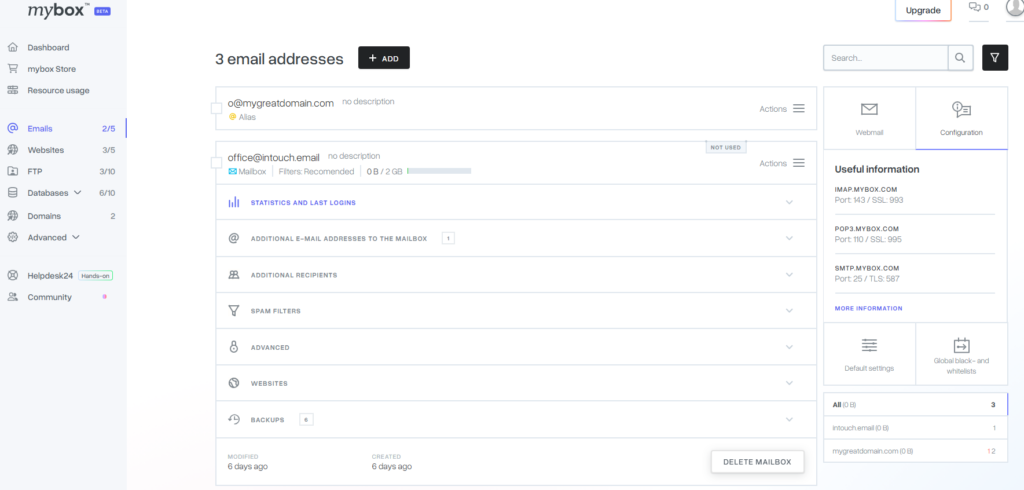
1. Account Overview
In the Email Details section, you can verify if the mailbox is active and see its creation and modification dates. This is also where you monitor storage usage:
- Quota Management: You can see the total number of messages and the current disk space used.
- Limits: You can set a specific size limit (quota) for the address to prevent a single mailbox from consuming your entire plan’s storage.
2. Statistics and Security
- Recent Logins: Expand this section to see the last time the mailbox was accessed and the volume of recently sent messages. This is a helpful tool for identifying unauthorized access.
- Anti-spam Filters: View which active protections are guarding the inbox. You can click Edit Anti-Spam to adjust sensitivity or toggle specific filters like GreyListing.
3. Routing and Aliases
- Additional Email Addresses (Aliases): View all alternative addresses pointing to this mailbox. You can add new redirects or remove existing ones here.
- Additional Recipients (Forwarding): Manage where copies of incoming messages are sent. You can define new forwarding addresses or delete old ones to change how mail is distributed.
4. Advanced System Settings
The Advanced tab provides technical control over how the mailbox communicates with external apps:
- Protocol Toggles: Enable or disable POP3, IMAP, or SMTP individually.
- Maintenance Tools: If messages are not displaying correctly, use the Re-index feature. You also have the option to Clear Content, which instantly deletes all messages in the mailbox while keeping the account active.
Distinction Block
Alias vs. Additional Recipient An Alias is an alternative name for the same mailbox (e.g., [email protected] pointing to [email protected]). An Additional Recipient is a forwarder that sends a copy of the message to a completely different external address.
Practical Implications
- Linking to Websites: The Websites tab within the mailbox details allows you to associate the email account with a specific site. This is purely organizational and helps you group all related services under one project in your dashboard.
- Storage Warnings: If a mailbox reaches its set limit, it will stop receiving new messages. Monitoring the Email Details section regularly ensures you can increase the quota before the mailbox becomes full.
- Troubleshooting: Disabling SMTP in the Advanced tab is a quick way to stop a mailbox from sending mail if you suspect it has been compromised, without deleting the account entirely.
Summary
The Mailbox Details view is the primary command center for your email. From tracking storage and login history to managing aliases and protocol access, it provides the transparency needed to maintain a secure and organized communication layer.