


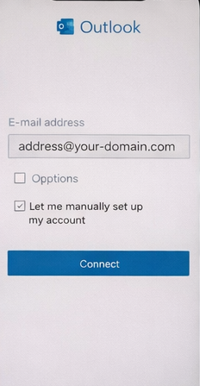
To add an email inbox in Outlook 2016 or 2019, in the first step, type the name of your mailbox in the Email address field, and then check the Allow me to set up my account manually box. Once you’re doing this, click the Connect button.
At this point, the program will ask you what type of mailbox you want to set up. Select IMAP.


In this step, we need to specify the names of the mail hosts and the ports on which the communication will take place. So we fill in the following:
Incoming mail: imap.mybox.com
Incoming mail port: 993
Encryption method: SSL/TLS
Outgoing Mail: smtp.mybox.com
Outgoing Mail Port: 587
Encryption Method: SSL/TLS or STARTTLS
In either case, we recommend that you check the authentication requirement option.
Once you have filled in the required fields, click Next.

Now the program will ask you for the password to the box. Enter the password that matches the one you set when you created the mailbox in the mybox panel and click the Connect button.

That’s all. If there is correct communication with the server, you will receive information that the account/mailbox has been added successfully.
