


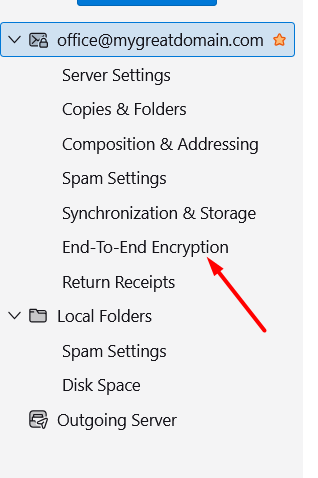
To generate PGP (Pretty Good Privacy) keys directly at the Mozilla Thunderbird application level, run the program and click the “End-to-end encryption” button in the settings page.
On the page that will be loaded, you will see information that the selected mailbox does not yet have a personal OpenPGP key. Click the “Add Key…” button to proceed to the process of generating it.


The app will tell you two options to choose from. Create a new key or import an existing one. In this guide, we’re all about creating, so check the first option and click the “Continue” button to move on.

The application will now indicate for which mailbox . identity, the key will be generated, how long it will be valid and what the size of the key should be. We choose 3 years old and size 4096 here. Click the “Generate Key” button to proceed to the final step.

A message will appear that the process may take a while. The time it takes to generate the key will depend on your computer. Click the “Confirm” button to complete the process.

The generation of the key has been completed and it has been associated with the indicated mailbox / identity. As you can see in our example, the key is marked so that the mailbox can use it and has an expiration date according to the choice for a period of 3 years from the day it was generated.
