


The mybox panel includes a built-in import tool that pulls messages from an external email account directly into a mybox mailbox. This is useful when migrating email from a previous provider.
Before starting, make sure the destination mailbox already exists in mybox. If not, see If not, see How to add a new mailbox.
Table of Contents
Method 1: Import via the mybox panel

1. Log in to the mybox panel and go to the E-mail tab.
2. Find the destination mailbox and click Actions.
3. Select Import Messages from the dropdown.
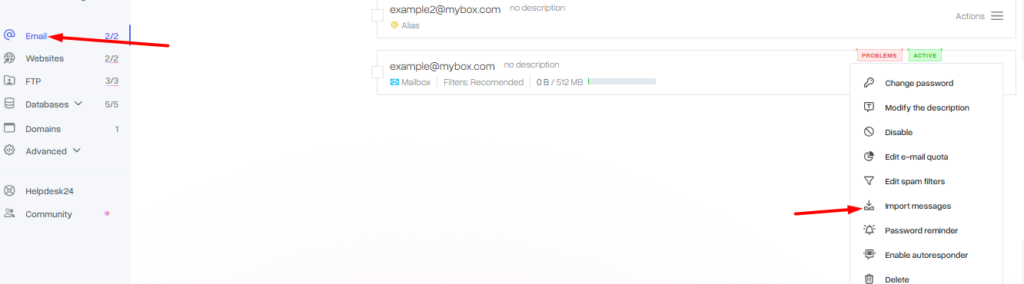
4. In the form that appears, enter:
| Field | What to enter |
| Mail server | Incoming mail server (IMAP) of your previous provider |
| Mailbox name | Full email address at the previous provider |
| Password | Password for that email account |

5. Confirm to start the import.
A confirmation email will arrive in the destination mailbox once the import is complete.
Method 2: Import using IMAPCopy
If your previous provider does not support direct IMAP access or the panel import does not work, use IMAPCopy - a tool that copies messages between two IMAP accounts.
If the import fails
Check that:
- The mail server address is correct (ask your previous provider if unsure)
- IMAP access is enabled on the source account
- The password is current
If the issue persists, contact support via Helpdesk 24 in the mybox panel.