


Removing an email alias stops the redirection of messages to your primary mailboxes. You can either delete the entire alias address or selectively remove specific recipients if the alias forwards to multiple people.
Table of Contents
Context
When an alias is deleted, any mail sent to that address will no longer be delivered and will typically return a “User Unknown” error to the sender. This action does not delete the messages already stored in the recipient mailboxes; it only removes the “pointer” that directs new mail.
Method 1: Full Alias Deletion

This is the fastest way to completely remove an alias and all its associated forwarding rules from the mybox panel.
- Locate the Alias: Go to the Email tab in your dashboard.
- Open Actions: Find the alias you wish to remove in the list.
- Delete: Click the Actions button next to the alias name and select Delete.
- Confirm: A prompt will appear asking you to confirm the action. Review the list of affected forwarding addresses and click to finalize.
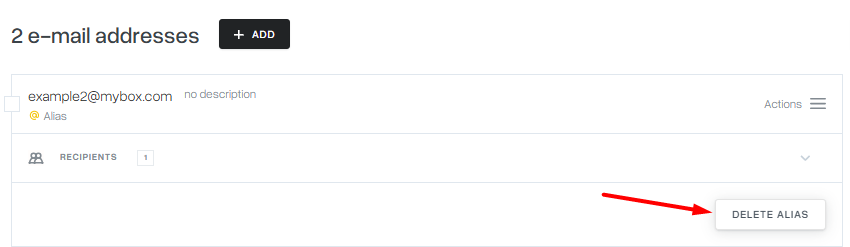

Method 2: Removing Specific Recipients
Use this method if your alias forwards to multiple people and you only want to stop delivery to one of them while keeping the alias active for others.
- View Alias Details: In the Email list, click on the alias name or the Details button.
- Manage Forwarding: Select the Recipients tab.
- Remove Address: Locate the specific email address that should no longer receive these messages and click Delete next to it.
- Save: Confirm the change when prompted.

Distinction: Deleting an Alias vs. Deleting a Mailbox
- Deleting an Alias: Only removes the redirection rule. No actual stored emails are lost because an alias has no storage of its own.
- Deleting a Mailbox: Permanently removes the physical storage, all saved emails, and the login credentials. This action is irreversible.
Practical Implications
- Immediate Effect: Once an alias or recipient is deleted in the mybox panel, the change takes effect on the mail server almost instantly.
- Outgoing Mail: After deleting an alias, it will no longer be available as an option in the “From” dropdown menu in mail.mybox.com.
- Clean-up: If you are deleting an alias to replace it with a full mailbox of the same name, you must delete the alias first to “free up” the address before the system will allow you to create the new mailbox.
Summary
Managing the lifecycle of your email addresses is simple within the mybox panel. Whether you are retiring an old department address or updating a distribution list, you can precisely control where your incoming mail is routed.