


DNS management is an important part of hosting because it controls where your domain points, where your email is delivered, and how external services verify or connect to your domain.
Both cPanel and the mybox panel allow users to manage DNS records, but the experience is organized differently. In cPanel, DNS is usually managed through the Zone Editor. In mybox, DNS management is accessed from the Domains section, where each domain has its own actions and DNS records page.
Table of Contents
What is DNS?

DNS stands for Domain Name System. It works like the address book of the internet. When someone enters a domain name such as example.com, DNS tells the browser which server should load the website.
DNS is also used for email delivery, domain verification, subdomains, external platforms, and security records.
For example, DNS can decide:
- which server opens your website
- which mail server receives your email
- whether
www.example.compoints to the same website asexample.com - whether Google, Microsoft, or another service can verify your domain
- whether SPF, DKIM, and DMARC are configured for email security
Common DNS record types
The most common DNS records are:
| Record type | What it does |
|---|---|
| A record | Points a domain or subdomain to an IPv4 address |
| CNAME record | Points one hostname to another hostname |
| MX record | Defines which mail server receives email for the domain |
| TXT record | Stores text values used for verification, SPF, DKIM, DMARC, and other services |
| AAAA record | Points a domain or subdomain to an IPv6 address |
| NS record | Defines the nameservers responsible for the domain |
| SOA record | Stores administrative information about the DNS zone |
For most users, the most important records are A, CNAME, MX, and TXT.
Nameservers vs DNS records
Before changing DNS records, it is important to understand the difference between nameservers and DNS records.
Nameservers decide where the DNS zone is managed.
DNS records decide where specific services point.
For example, if a domain uses mybox nameservers, the DNS records should be managed in mybox. If the domain uses external nameservers, such as Cloudflare or another DNS provider, the records must be managed there instead.
This is one of the most important DNS rules:
DNS changes must be made where the active nameservers are hosted.
If you edit DNS records in the wrong place, the changes will not affect the live domain.
DNS management in cPanel
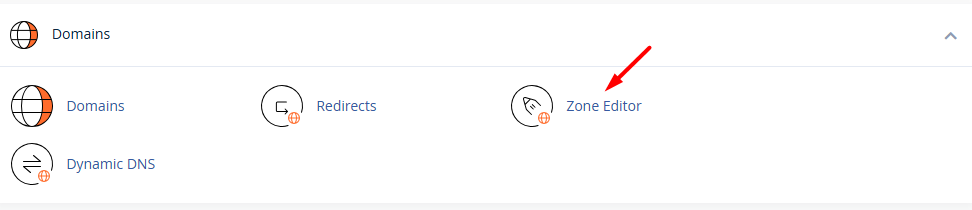
In cPanel, DNS is usually managed through the Zone Editor.
The Zone Editor allows users to add, edit, and delete DNS records for domains connected to the hosting account. Depending on the hosting provider’s configuration, users can manage records such as:
- A records
- CNAME records
- MX records
- TXT records
- AAAA records
- SRV records
The cPanel Zone Editor is a traditional DNS management tool. It gives users direct access to DNS records and is familiar to many experienced hosting users.
However, for beginners, it can feel technical. Users need to understand what each record type does and where it should point. A wrong DNS change can affect the website, email delivery, or domain verification.
DNS management in the mybox panel

In the mybox panel, DNS management is accessed from the Domains section.
To manage DNS records for a domain in mybox, the user can follow this path:
- Open the Domains section.
- Find the domain that needs to be managed.
- Click the Actions button next to that domain.
- Select Manage DNS.
- The user is redirected to the DNS Records page for that domain.
On the DNS Records page, users can view existing records and add or modify DNS settings.
This makes the flow clear: first choose the domain, then manage its DNS records.
Domain overview in mybox
Before entering the DNS records page, the mybox domain view gives users useful information about the domain.
For example, the domain section can show:
- default IP address for the domain
- registration status
- delegation status
- whether the domain is parked
- whether the email service is active
- Cloudflare status
This helps users understand the domain’s current configuration before changing DNS records.
For example, the panel can show if the domain is delegated outside mybox. This is important because if delegation is outside mybox, DNS changes may need to be made at the external DNS provider instead.
Managing DNS records in mybox
After selecting Manage DNS, the user reaches the DNS Records page.
This page displays the records for the selected domain in a table. The table can show information such as:
- record name
- record type
- record value
- TTL
- edit option
- delete option
Examples of records visible in the DNS Records page can include:
- SOA record
- NS records
- A record for the main domain
- CNAME records for subdomains or services
- mail-related records such as
imap,pop3,smtp, orautoconfig
Each editable record can have options such as Edit and Delete, allowing users to update or remove DNS entries when needed.
DNS actions in mybox
On the DNS Records page, the user can also click the Actions button. This opens additional DNS options.
The available options can include:
- Add record
- Reset DNS zone
- DMARC Creator
- SPF Creator
- E-mail redirection to mybox.com
- E-mail redirection to Gmail
- E-mail redirection to Office365
- E-mail redirection to another ISP
This is one of the important differences between mybox and a basic DNS editor. mybox does not only allow manual DNS record editing. It also provides guided tools for common DNS and email scenarios.
For example, instead of manually creating all records for a specific email setup, users may be able to use predefined redirection options for mybox, Gmail, Office365, or another provider.
Adding DNS records in mybox
Users can add DNS records from the DNS Records page by using the Add Record button or the Add record option inside the Actions menu.
This is where users can create records such as:
- A records
- CNAME records
- MX records
- TXT records
The exact values depend on what the user wants to configure.
For example:
- To point a domain to a server, use an A record.
- To point
wwwto the main domain, use a CNAME record. - To configure email delivery, use MX records.
- To verify a domain or configure email authentication, use TXT records.
A records in cPanel vs mybox
An A record points a domain or subdomain to an IPv4 address.
Example:
example.com → 45.159.80.4
In cPanel, A records are usually managed from the Zone Editor. Users select the domain, add or edit the record, and enter the IP address.
In mybox, A records are managed from the domain’s DNS Records page. The domain overview can also show the default IP address for the domain, which helps users understand where the domain currently points.
A records are commonly used when:
- the main domain should point to a hosting server
- a subdomain should point to a specific server
- a website is hosted on one server while other services are hosted elsewhere
CNAME records in cPanel vs mybox
A CNAME record points one hostname to another hostname.
Example:
www.example.com → example.com
or:
shop.example.com → external-service.example.net
In cPanel, CNAME records are added or edited through the Zone Editor.
In mybox, CNAME records are visible and editable from the DNS Records page. For example, mail-related or service-related hostnames may use CNAME records to point to the correct mybox service.
CNAME records are commonly used for:
- pointing
wwwto the main domain - connecting subdomains to external platforms
- configuring mail client autoconfiguration
- pointing service hostnames to provider hostnames
A CNAME should point to another hostname, not directly to an IP address. If the destination is an IP address, an A record is usually required instead.
MX records in cPanel vs mybox
An MX record defines which mail server receives email for a domain.
In cPanel, MX records are usually managed from the Zone Editor or from email routing tools, depending on the hosting provider’s configuration.
In mybox, MX and mail-related DNS settings are managed from the DNS Records page. The Actions menu also includes email redirection options, such as redirection to:
- mybox.com
- Gmail
- Office365
- another ISP
This makes email DNS configuration easier for users who want to use a specific mail provider.
MX records are important because incorrect MX settings can prevent incoming email from working.

TXT records in cPanel vs mybox
A TXT record stores text information in the DNS zone. TXT records are often used for domain verification and email security.
Common TXT records include:
- SPF
- DKIM
- DMARC
- Google verification records
- Microsoft verification records
- other third-party service verification records
In cPanel, TXT records are added through the Zone Editor.
In mybox, TXT records can be managed from the DNS Records page. The Actions menu also includes tools such as SPF Creator and DMARC Creator, which can help users create important email security records more easily.
This is useful because SPF and DMARC records can be confusing for non-technical users. A guided creator reduces the chance of mistakes.
SPF and DMARC in mybox
The mybox DNS Records page includes quick tools for:
- SPF Creator
- DMARC Creator
SPF and DMARC are important for email deliverability and protection against spoofing.
SPF defines which servers are allowed to send email for a domain.
DMARC tells receiving mail servers what to do when messages fail SPF or DKIM checks.
In cPanel, these records can usually be created manually through the Zone Editor or through email deliverability tools if enabled by the hosting provider.
In mybox, the presence of SPF and DMARC creators makes these records easier to configure from the DNS management area.


Resetting the DNS zone
The mybox DNS Actions menu includes a Reset DNS zone option.
This can be useful when DNS records have been changed incorrectly and the user wants to restore the default zone configuration.
In cPanel, similar functionality may exist depending on the provider, but it is not always exposed in the same way to every user.
DNS reset options should be used carefully because they can overwrite custom records. If the domain uses external services such as Google Workspace, Microsoft 365, newsletter platforms, or verification records, those custom records may need to be added again after a reset.
Email redirection presets in mybox
Another useful part of the mybox DNS Actions menu is the email redirection section.
The menu can include options such as:
- To mybox.com
- To Gmail
- To Office365
- To another ISP
These options help users configure email DNS faster, especially when they want to use a common email provider.
In cPanel, users often configure this manually by editing MX records and email routing settings. This gives control, but it can be more confusing for beginners.
The mybox approach is more guided because common scenarios are available directly from the DNS actions menu.
DNS propagation
After changing DNS records, changes may not be visible immediately. This delay is called DNS propagation.
Propagation can take from a few minutes to several hours, depending on:
- the TTL value
- DNS cache
- the user’s internet provider
- browser or operating system cache
- whether records or nameservers were changed
In the mybox DNS Records page, TTL values are visible for records. For example, records may show a TTL such as 900s.
Nameserver changes usually take longer than regular DNS record changes.
Which panel is easier for DNS management?
cPanel is powerful and familiar for users who already understand DNS. The Zone Editor gives direct access to DNS records and allows manual management of many record types.
The mybox panel is easier for users who want a clearer path. DNS management starts from the Domains section, then continues through the domain’s Actions menu and the Manage DNS option.
The mybox DNS Records page also includes useful guided actions, such as SPF Creator, DMARC Creator, Reset DNS zone, and email redirection presets. This makes common DNS tasks easier for users who are not comfortable editing every record manually.
Comparison table
| Area | cPanel | mybox panel |
|---|---|---|
| Main DNS area | Zone Editor | Domains section → Actions → Manage DNS |
| DNS records page | Traditional zone editor | Dedicated DNS Records page for each domain |
| Add record | Add record inside Zone Editor | Add Record button or Actions → Add record |
| Edit/delete records | Available in Zone Editor | Available next to editable records |
| A records | Manually managed | Managed from DNS Records page |
| CNAME records | Manually managed | Managed from DNS Records page |
| MX records | Managed from Zone Editor or email tools | Managed from DNS Records page, with email redirection presets |
| TXT records | Manually managed | Managed from DNS Records page |
| SPF | Manual or email deliverability tools, depending on provider | SPF Creator available in DNS actions |
| DMARC | Manual DNS record creation | DMARC Creator available in DNS actions |
| DNS reset | Depends on provider configuration | Reset DNS zone option available |
| Email provider presets | Usually manual MX/email routing configuration | Options for mybox.com, Gmail, Office365, or another ISP |
| Beginner experience | Powerful but technical | More guided and easier to follow |
| Advanced control | Strong manual control | Manual records plus guided actions |
Practical example: managing DNS in mybox
To manage DNS in mybox:
- Go to Domains.
- Find the domain you want to manage.
- Click Actions.
- Choose Manage DNS.
- On the DNS Records page, review the current DNS records.
- Use Add Record to create a new DNS record.
- Use Edit or Delete next to existing records when needed.
- Open the Actions menu for additional tools such as SPF Creator, DMARC Creator, Reset DNS zone, or email redirection presets.
This flow makes DNS management easier to understand because each domain has its own DNS page and actions.
Practical example: pointing a domain to a server
If you want a domain to point to a specific server, you usually need an A record.
Example:
example.com → 45.159.80.4
In cPanel, this would usually be done through the Zone Editor function in the Domains section.
In mybox, you would open the domain from the Domains section, choose Manage DNS, and add or edit the A record on the DNS Records page.
Practical example: using Gmail or Office365 for email
If you want your domain to use Gmail or Office365 for email, the domain needs the correct mail DNS configuration.
In cPanel, this usually means manually editing MX records and possibly adjusting email routing.
In mybox, the DNS Actions menu includes email redirection options such as To Gmail and To Office365, making this type of setup easier to start.
Conclusion
Both cPanel and the mybox panel allow users to manage DNS, but they do it in different ways.
cPanel uses the traditional Zone Editor, which is powerful and familiar for experienced hosting users. It allows direct management of DNS records such as A, CNAME, MX, TXT, AAAA, and others.
The mybox panel organizes DNS management through the Domains section. Users select a domain, open Actions, and choose Manage DNS. From there, they can manage records on the DNS Records page, add new records, edit or delete existing ones, reset the DNS zone, use SPF and DMARC creators, and access email redirection presets for mybox.com, Gmail, Office365, or another provider.
For advanced users, cPanel offers a familiar manual DNS editor. For users who want a clearer and more guided DNS experience, the mybox panel provides a more structured approach while still offering the essential DNS tools needed to manage websites, email, and domain verification.